In QB Sync Made Easy, there are two methods of connecting Salesforce accounts with Quickbooks Online-
- Using Button
- Using Flows
In this guide, we'll walk you through the steps to sync Salesforce Accounts with QuickBooks Online Customers using the sync button. Before using this feature, ensure that the Account object and its fields are properly mapped with the sync direction set from Salesforce to QuickBooks.
So, follow these steps mentioned below –
Step 1: Navigate QB Setup
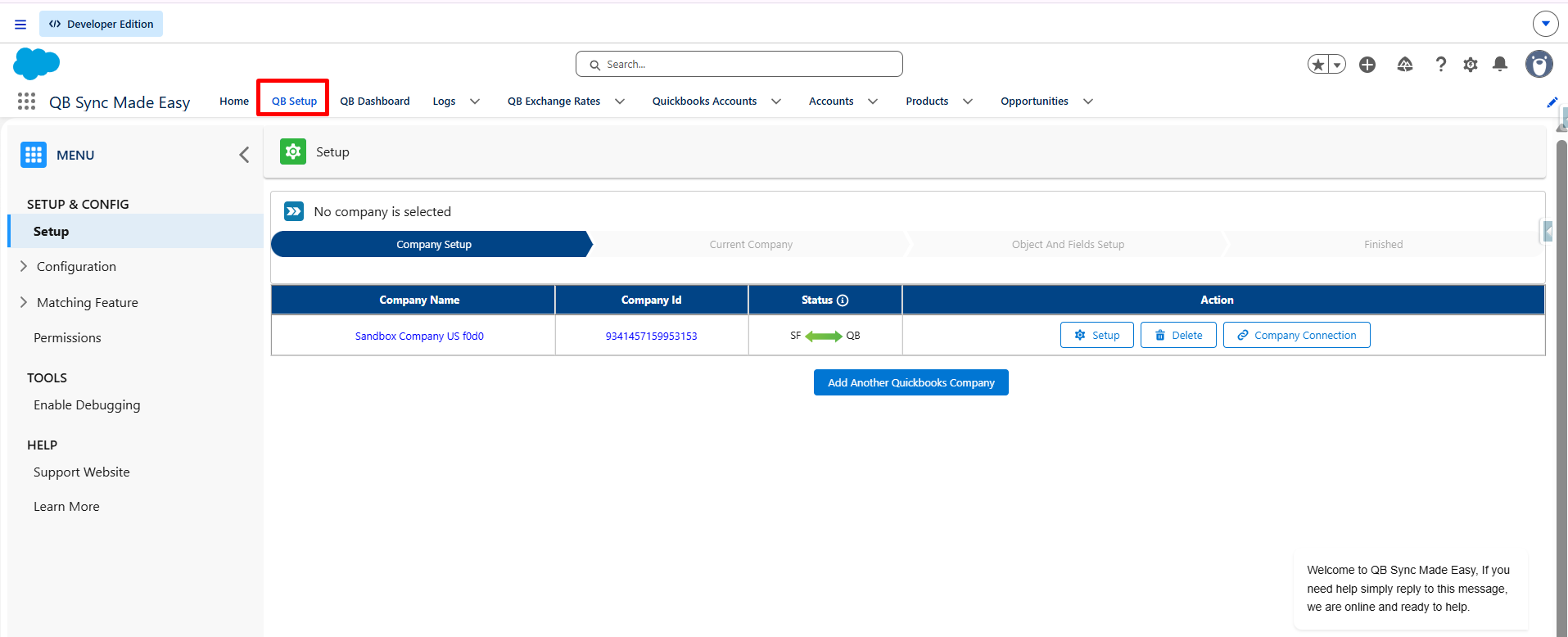
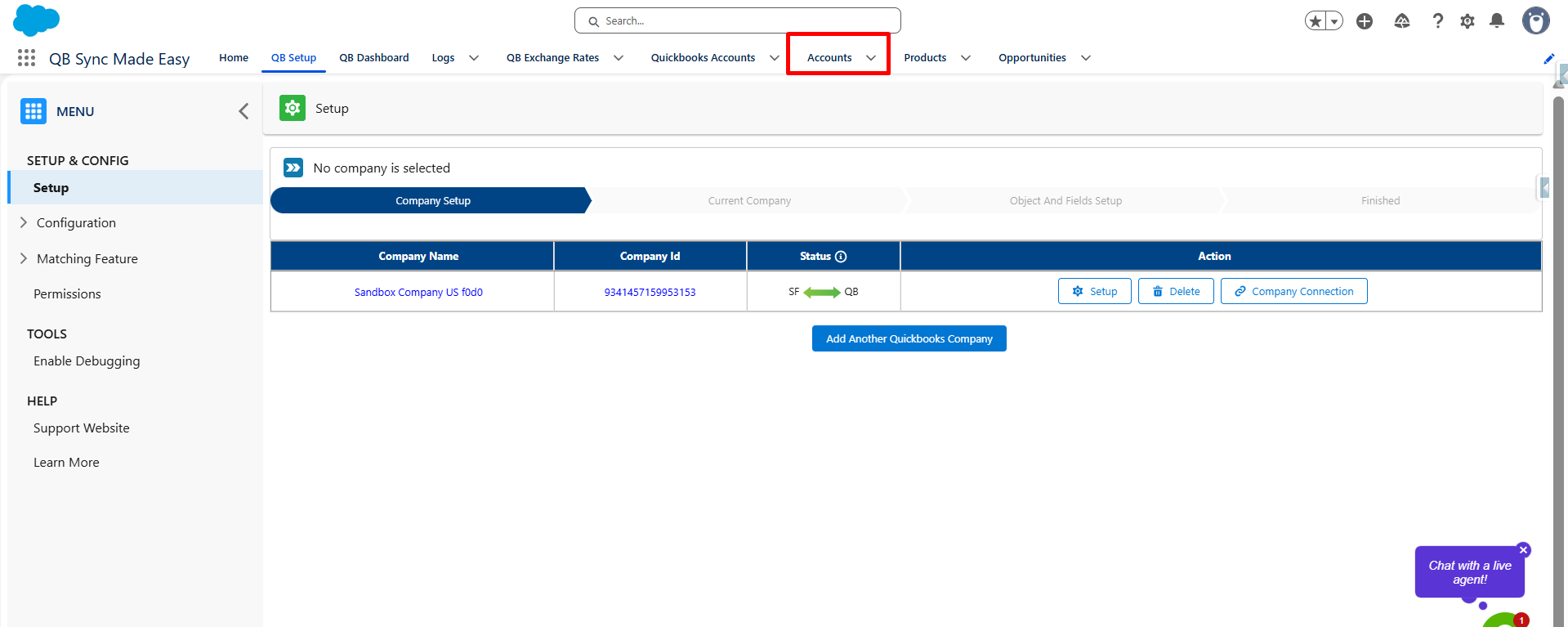
Step 2: Go to Account and Create new Account Record
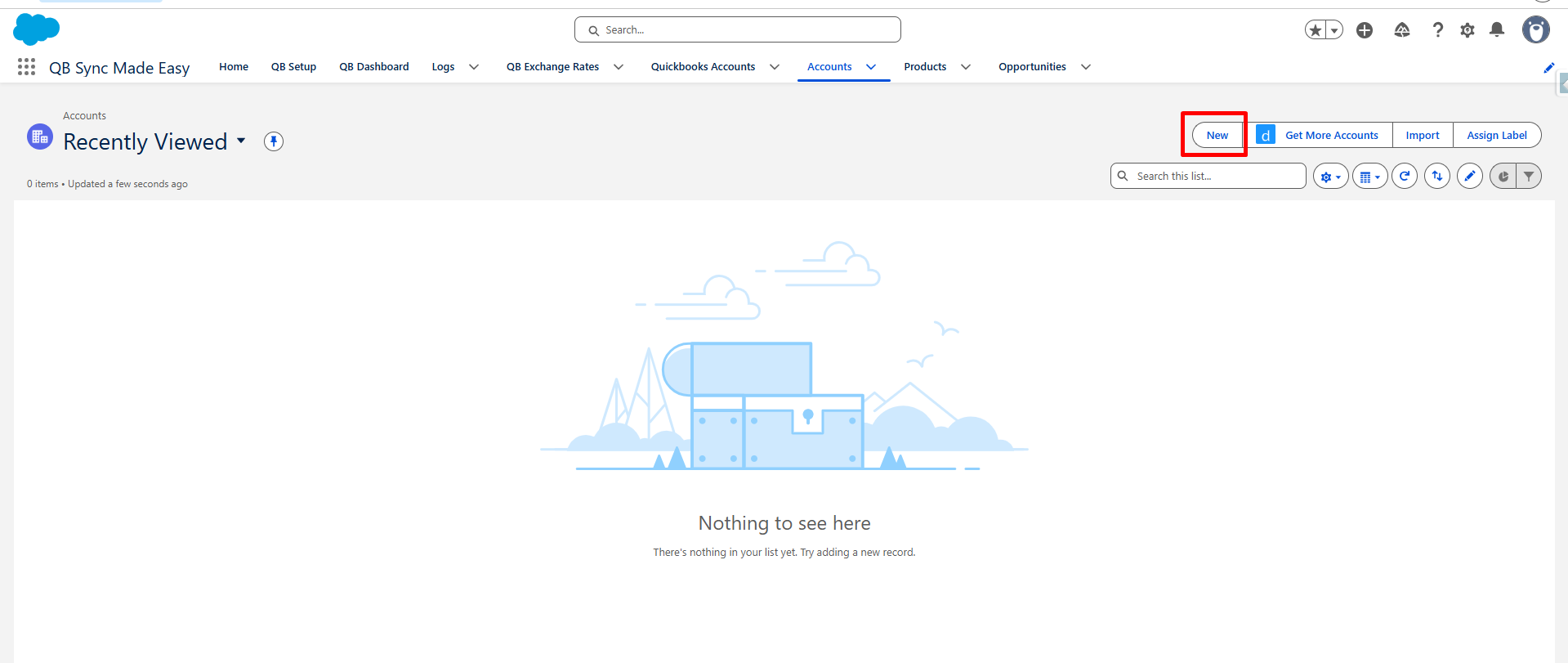
Step 3: Using New Button creating new Account record
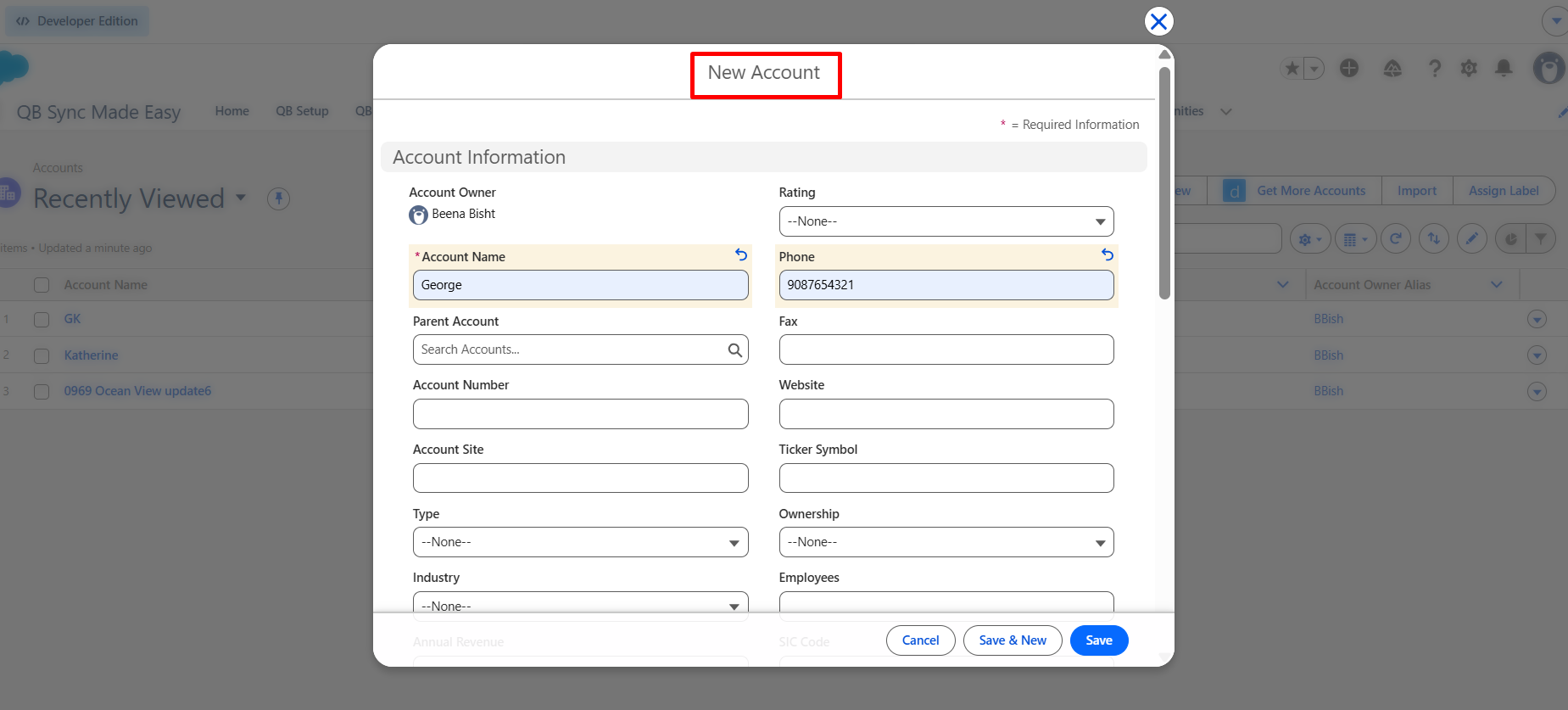
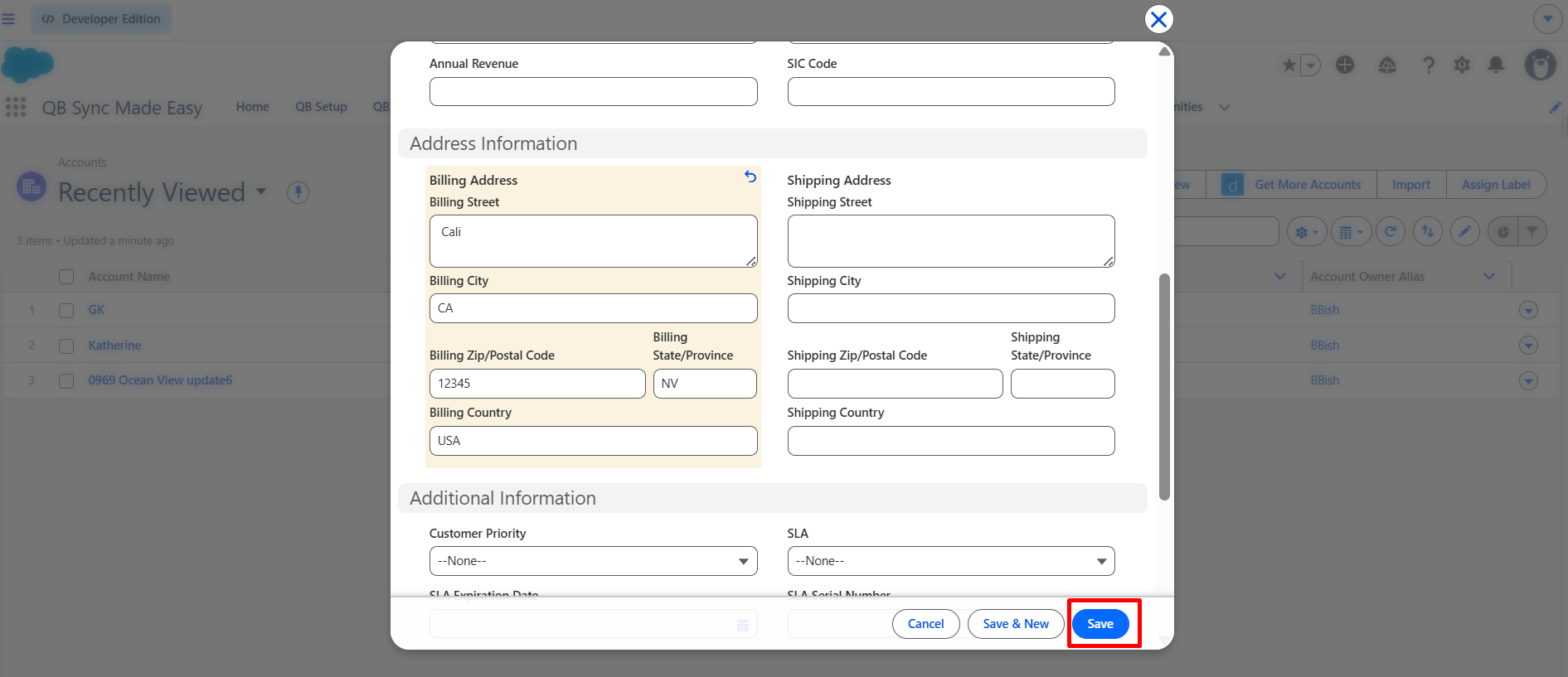
Step 4: Filled all detail that are mapped from sf to qb and click on Save button
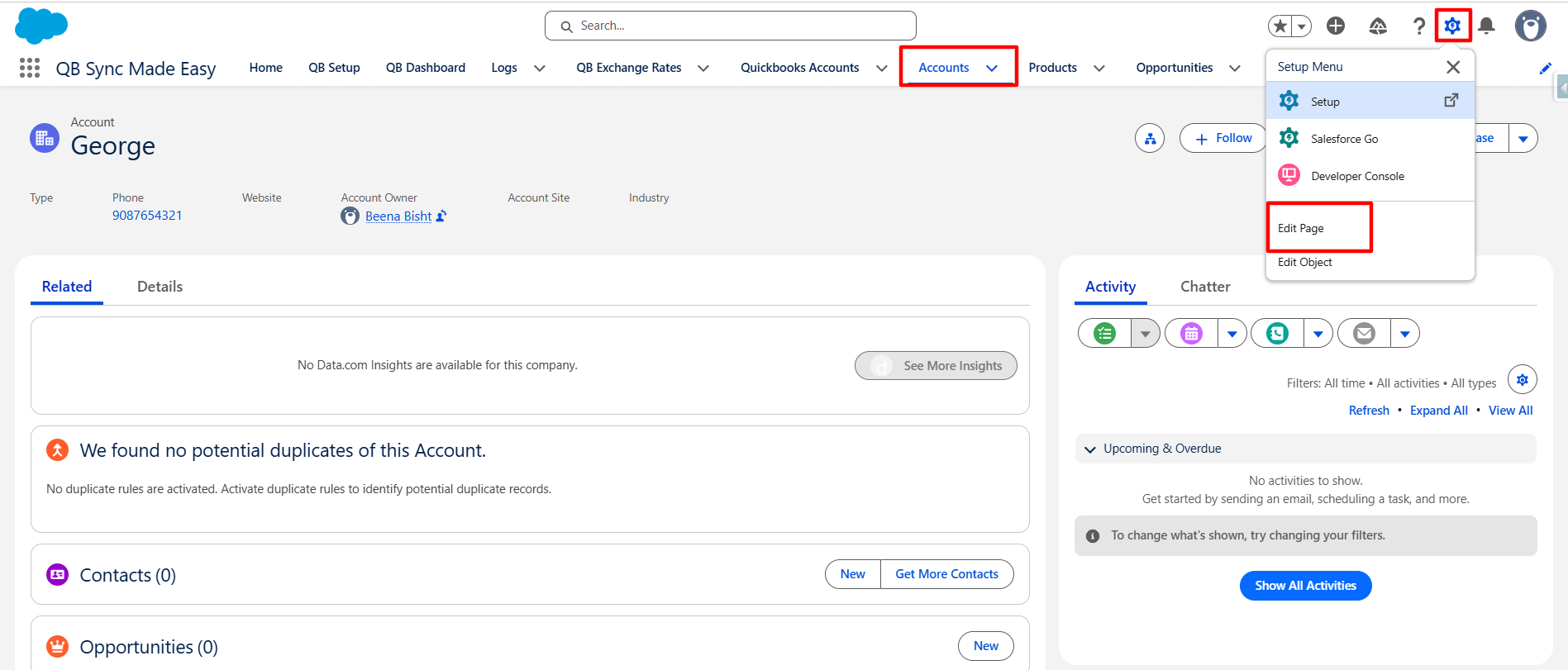
Step 5: Click the Gear icon and select Edit Page to open the Lightning App Builder.
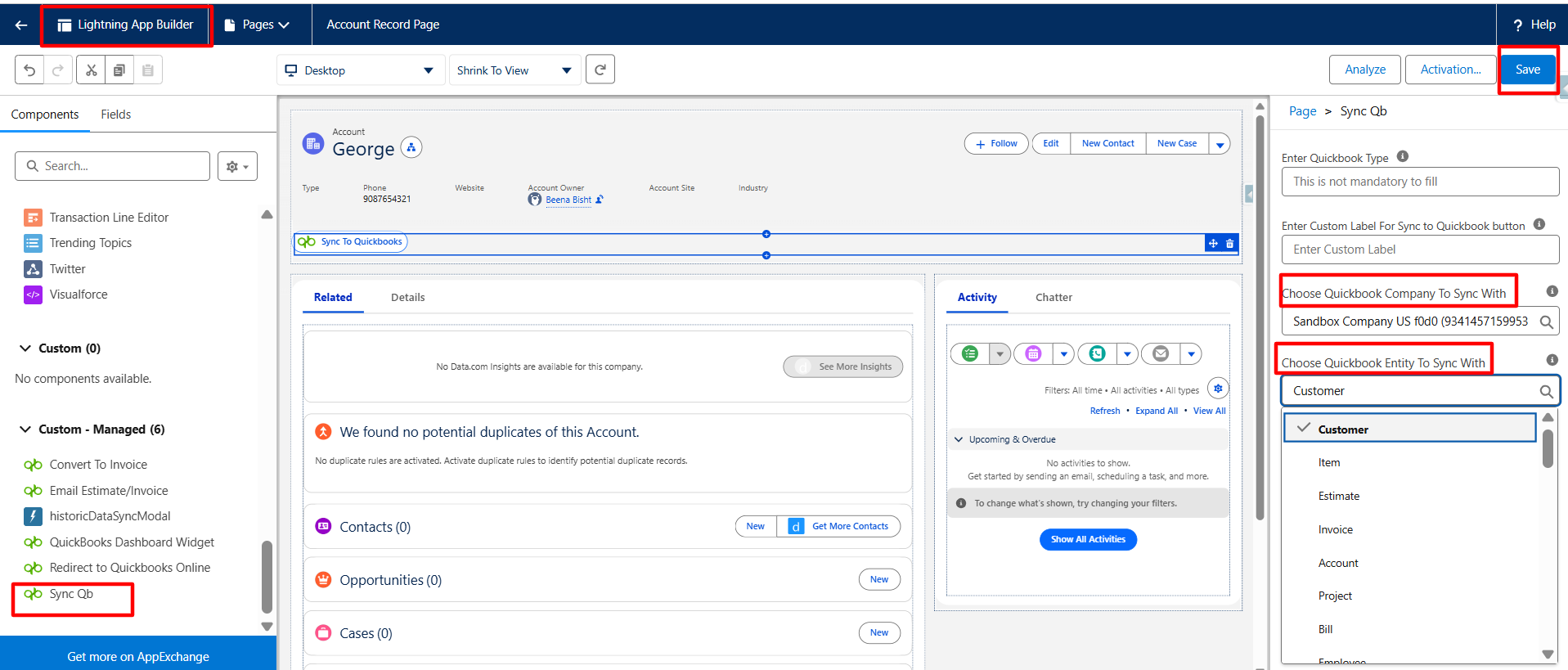
First, Go to Manage Custom then Drag and drop the Sync QB custom Button onto the page and Fill in the required Design Attributes.
- While choosing the QuickBooks CompanyId Design attribute, Select the company ID that you want to sync with(Mapping is required).
- Choose the QuickBooks entity Design attribute to Select and sync with (Mapping)
- After filled the required company and QB Entity click on Save Button.
Note:
Please note that these two Design Attributes are mandatory to sync..
Now you Go to the Record.
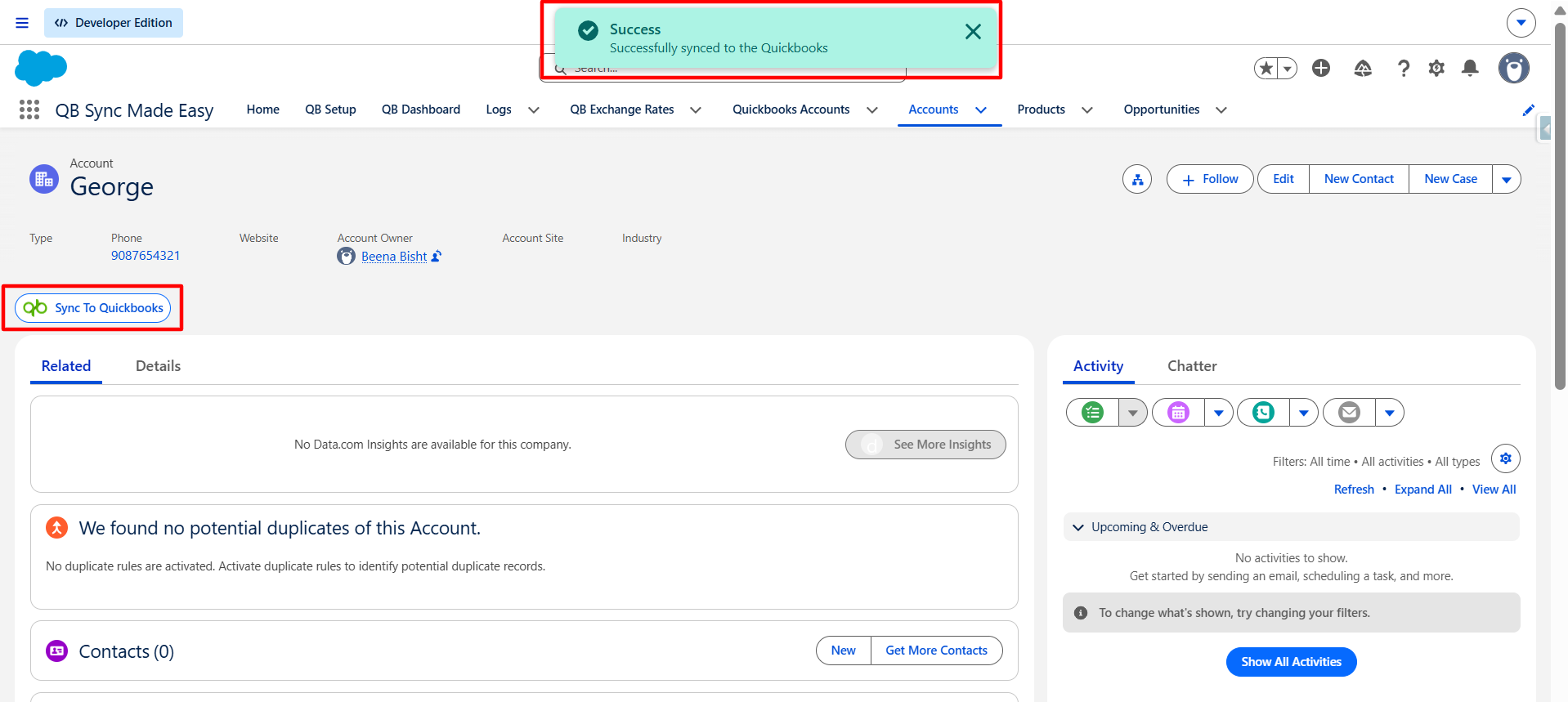
Step 6: Click the Sync to QuickBooks button to start the sync process, then verify that a success message is displayed.
After you have synced the Record, Go to Quickbooks Online and check the record.
Search Customer in QBO
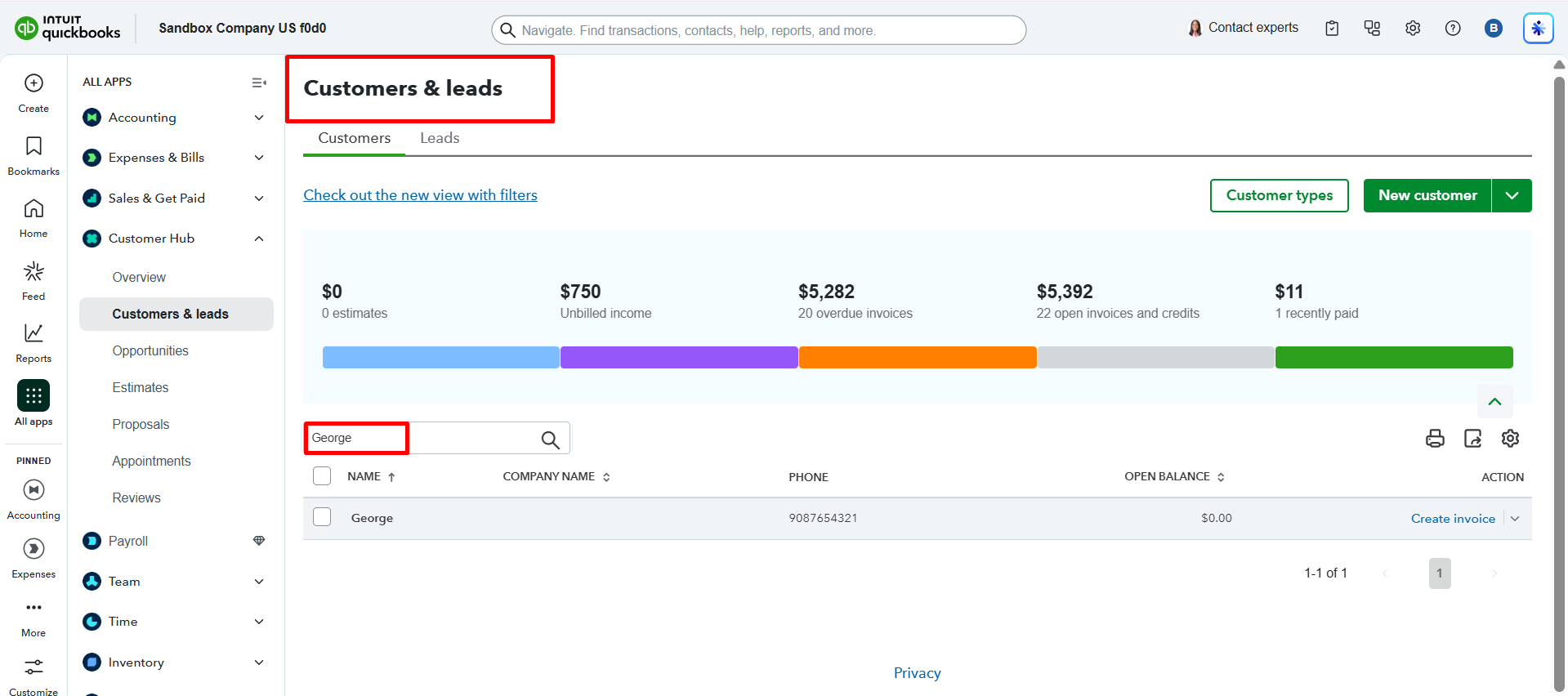
Verify Customer
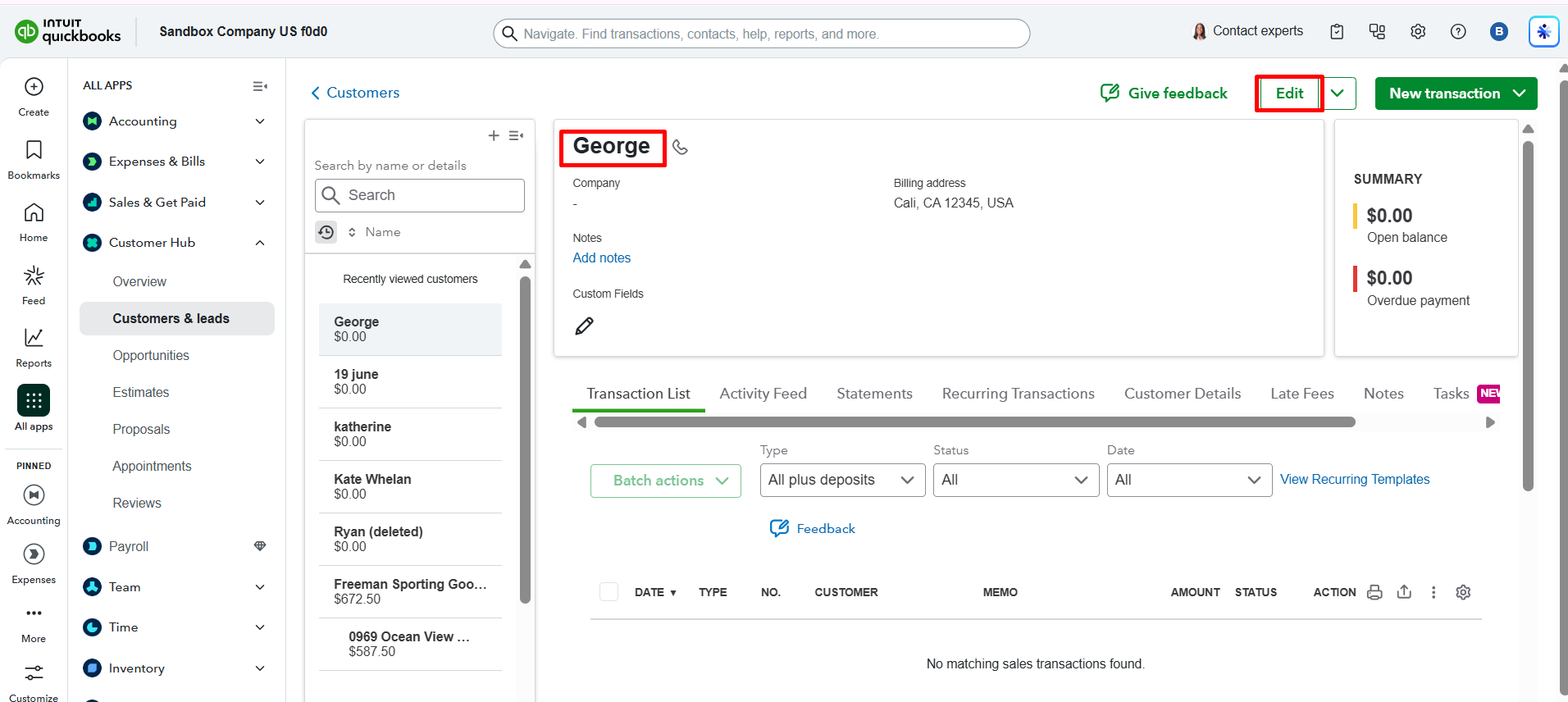
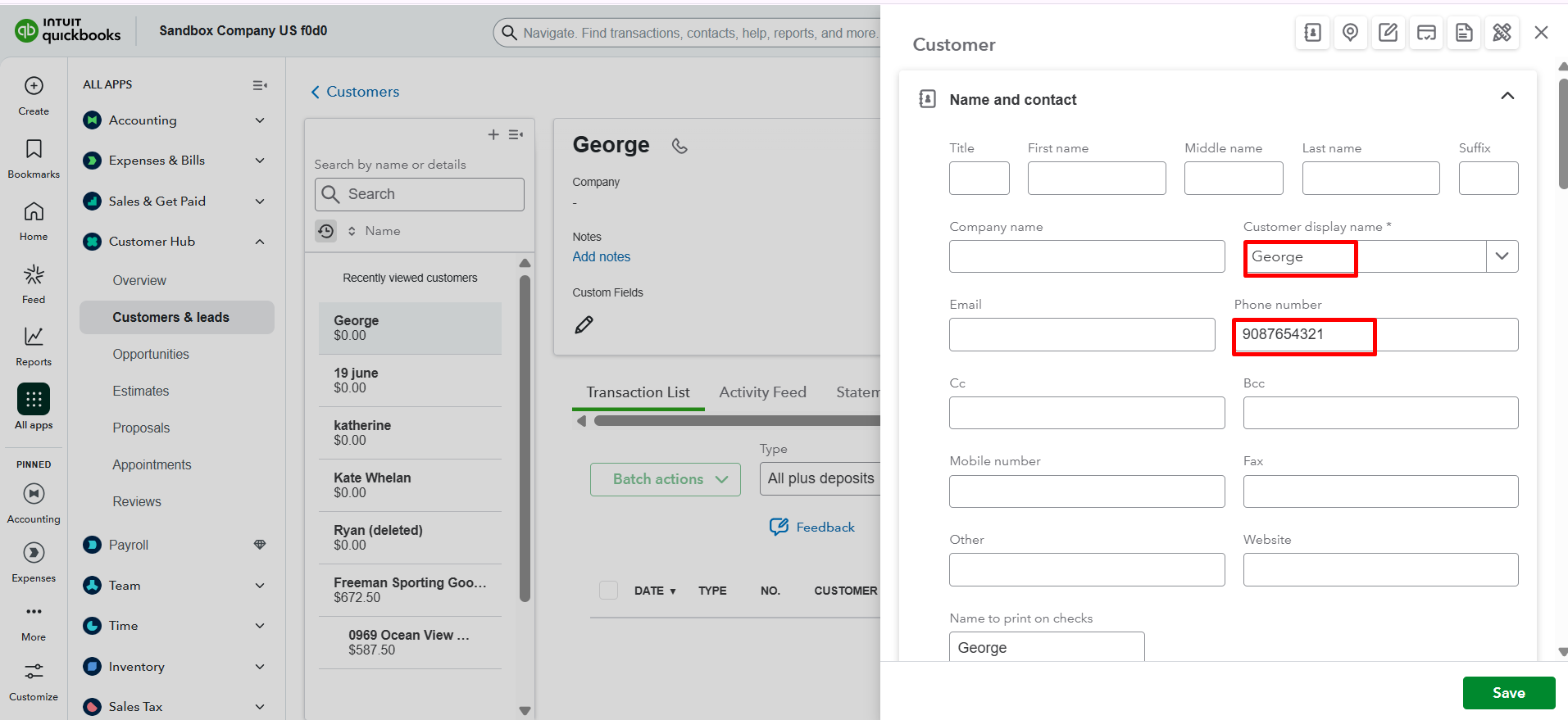
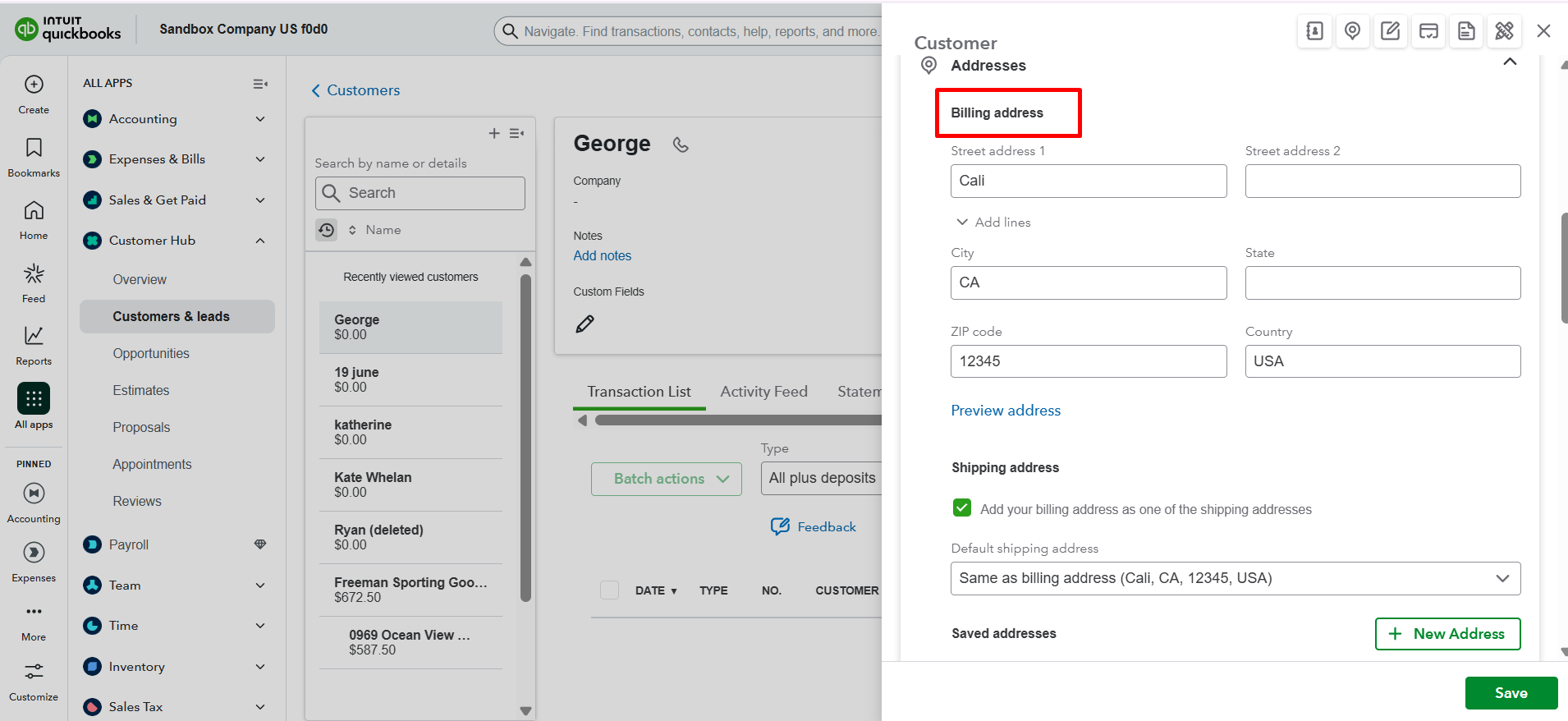
Hope you find the article helpful!
Was this article helpful?
That’s Great!
Thank you for your feedback
Sorry! We couldn't be helpful
Thank you for your feedback
Feedback sent
We appreciate your effort and will try to fix the article