After you have successfully installed the QB Sync Made Easy app in your org, it is time to connect and configure the same with Salesforce to get started with instant data sync.
Here is the step-by-step guide on how to connect and configure QB Sync Made Easy.
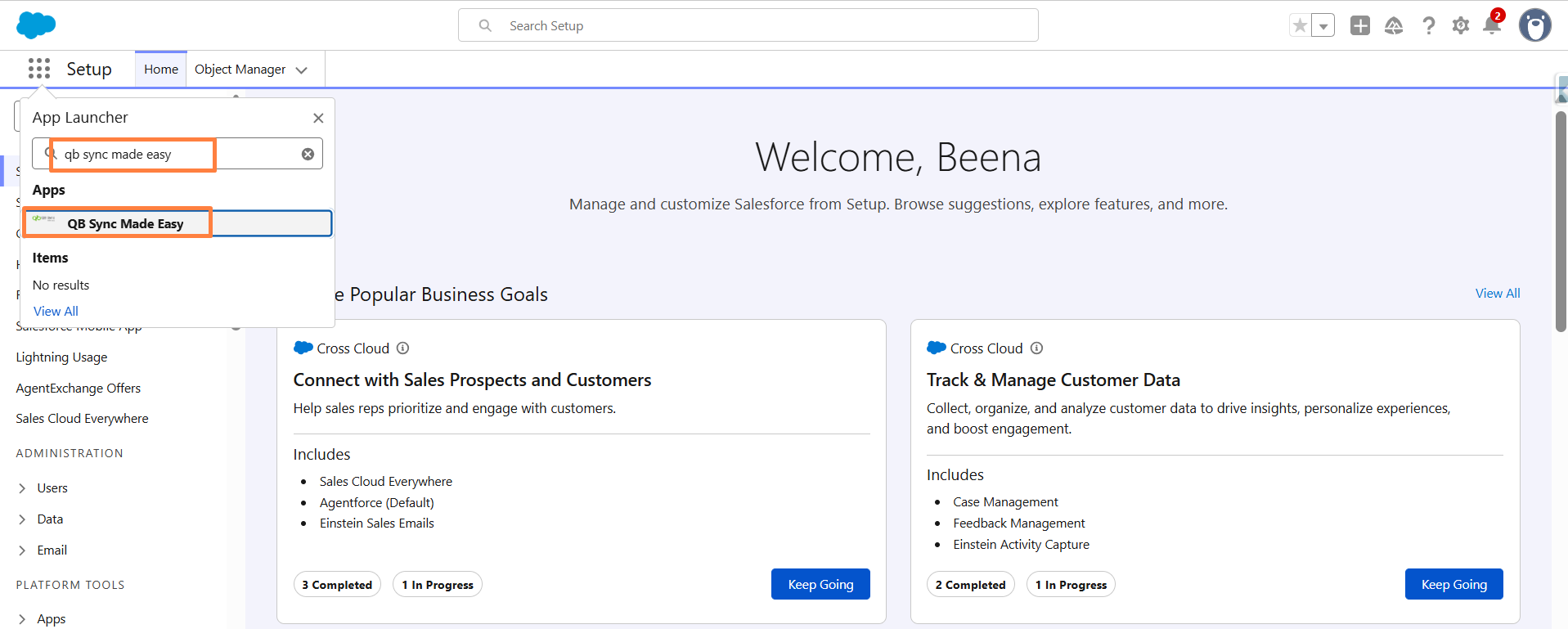
Step 1: Search QB Sync Made Easy app on App Launcher
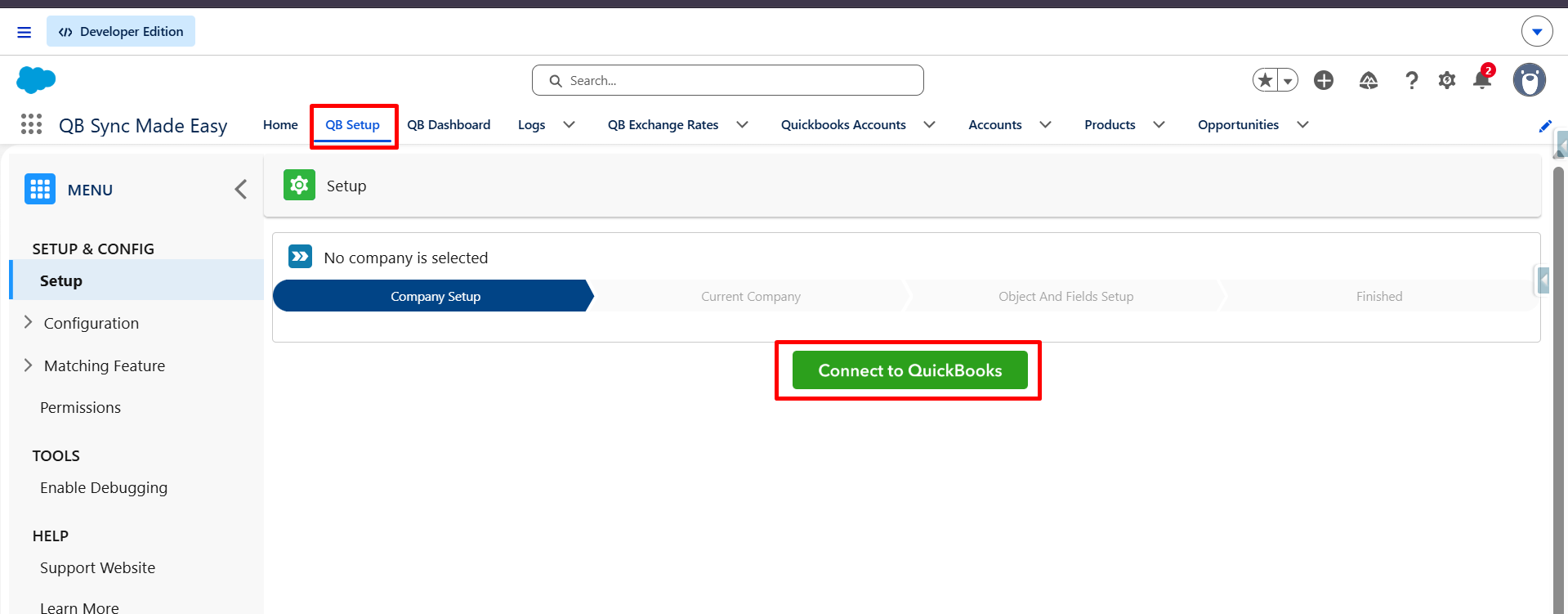
Step 2: Navigate to QB Setup and click the Connect to QuickBooks button.
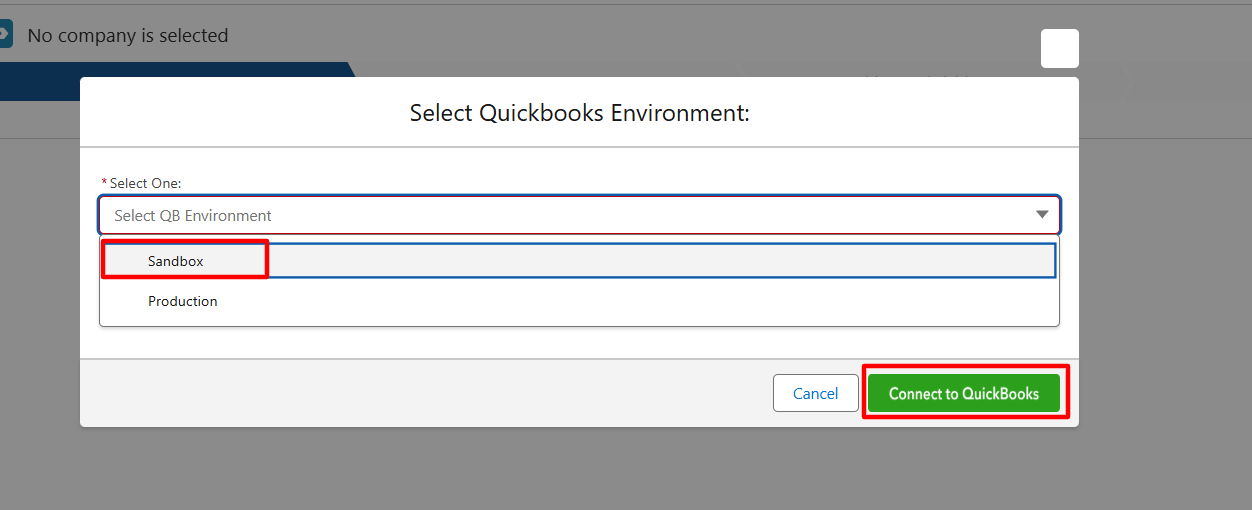
Step 3: A popup window will appear. Select the appropriate environment (Sandbox or Production) and click Connect to QuickBooks.
Note:
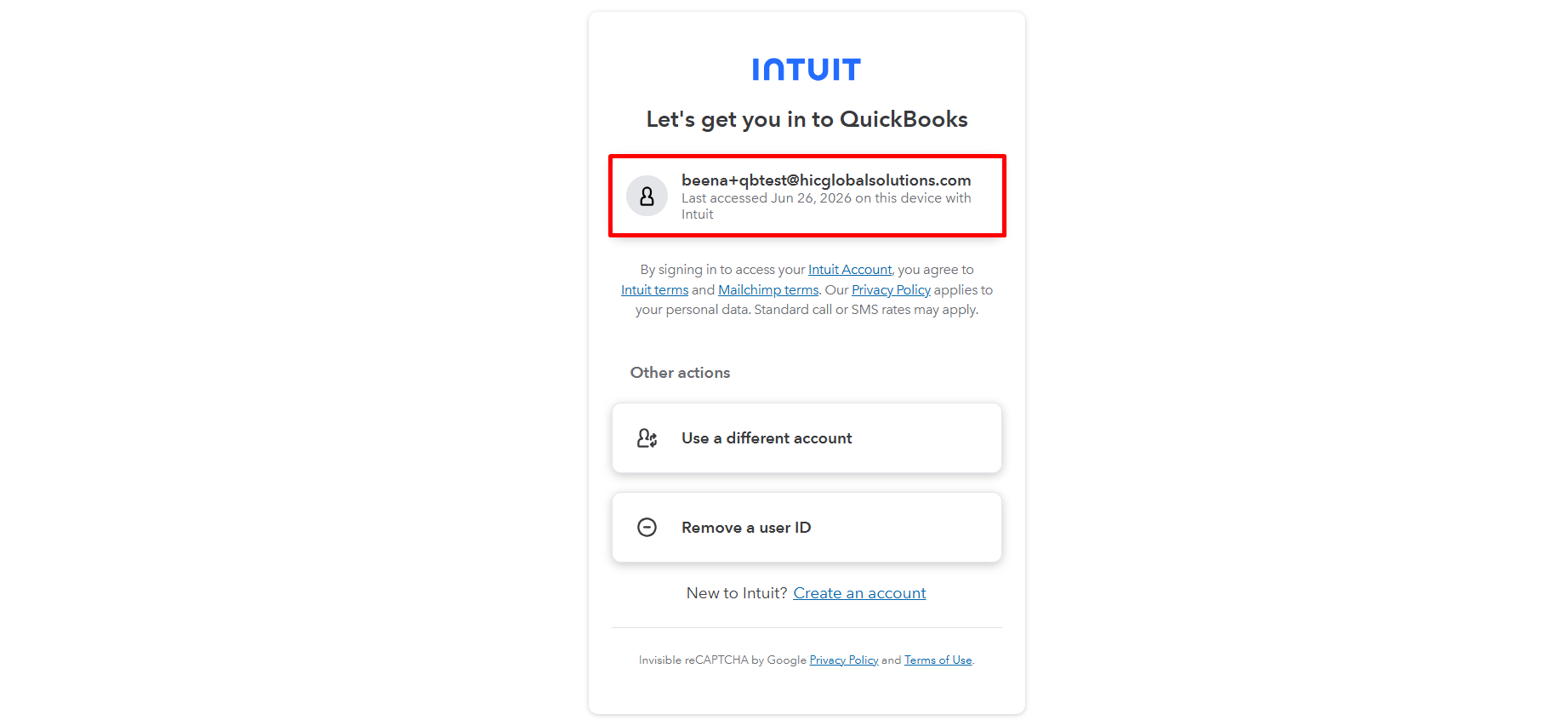
If you are accessing the QB Company in the browser for the first time, you will need to enter your QuickBooks credentials to sign in.
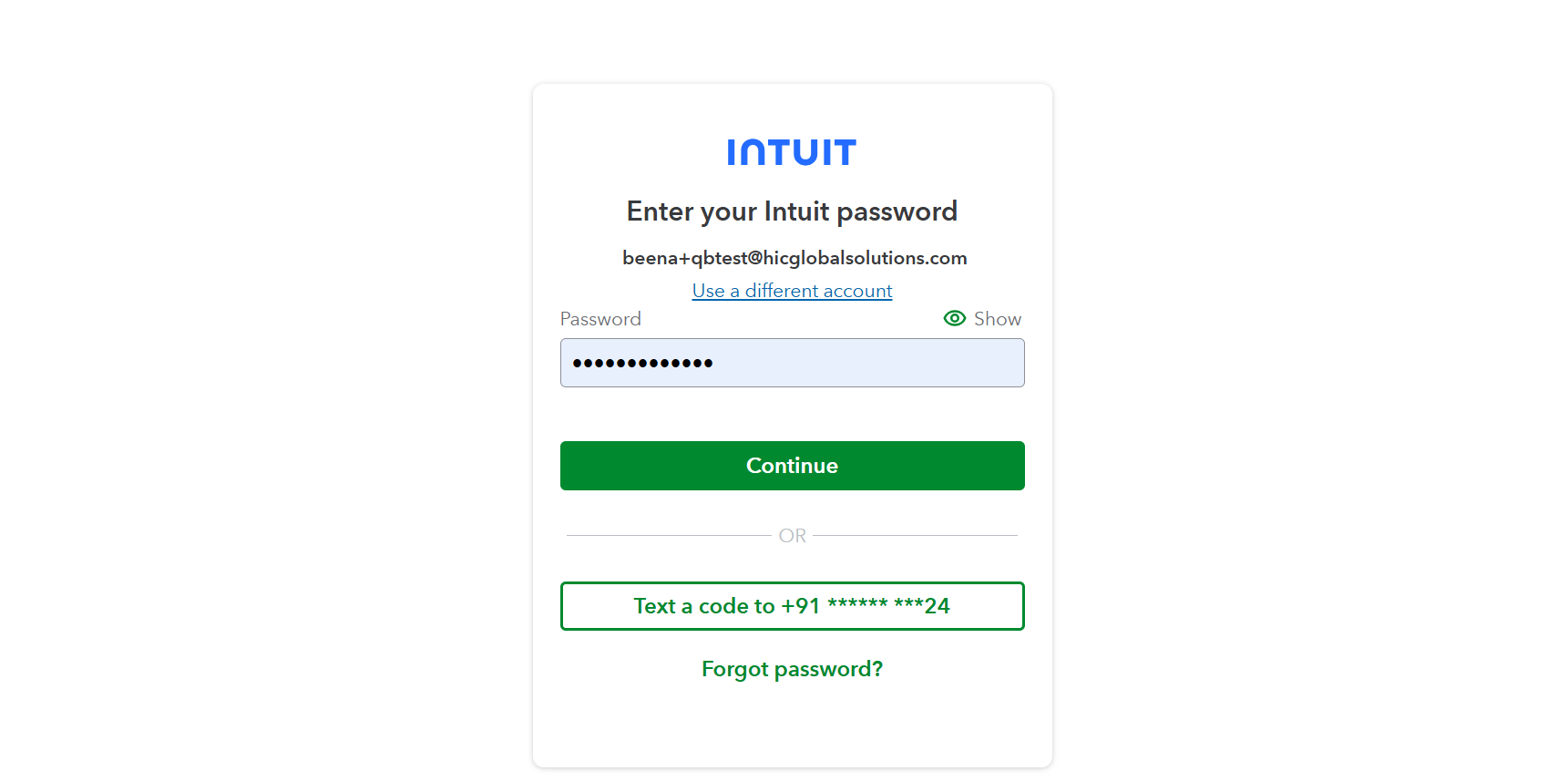
Step 4: Select the QuickBooks company you want to connect, then click Next.
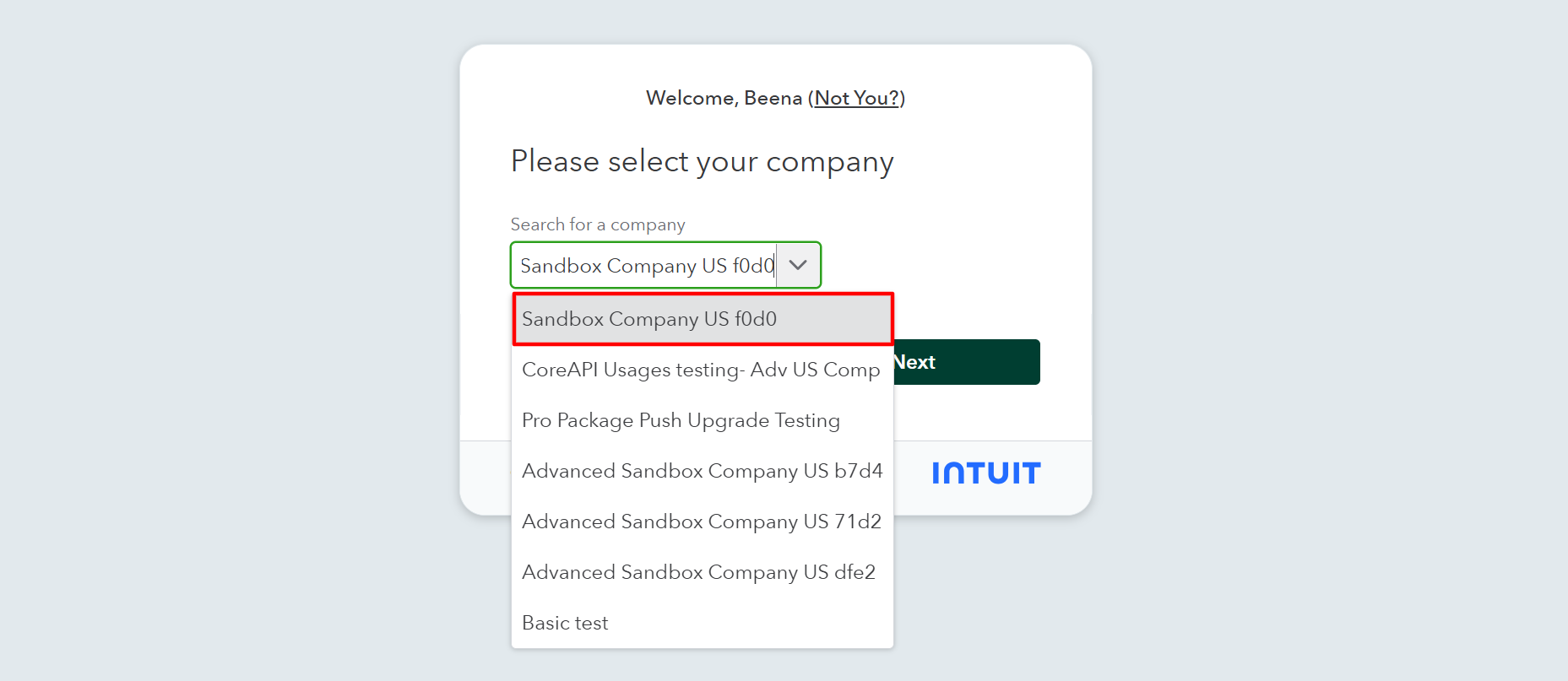
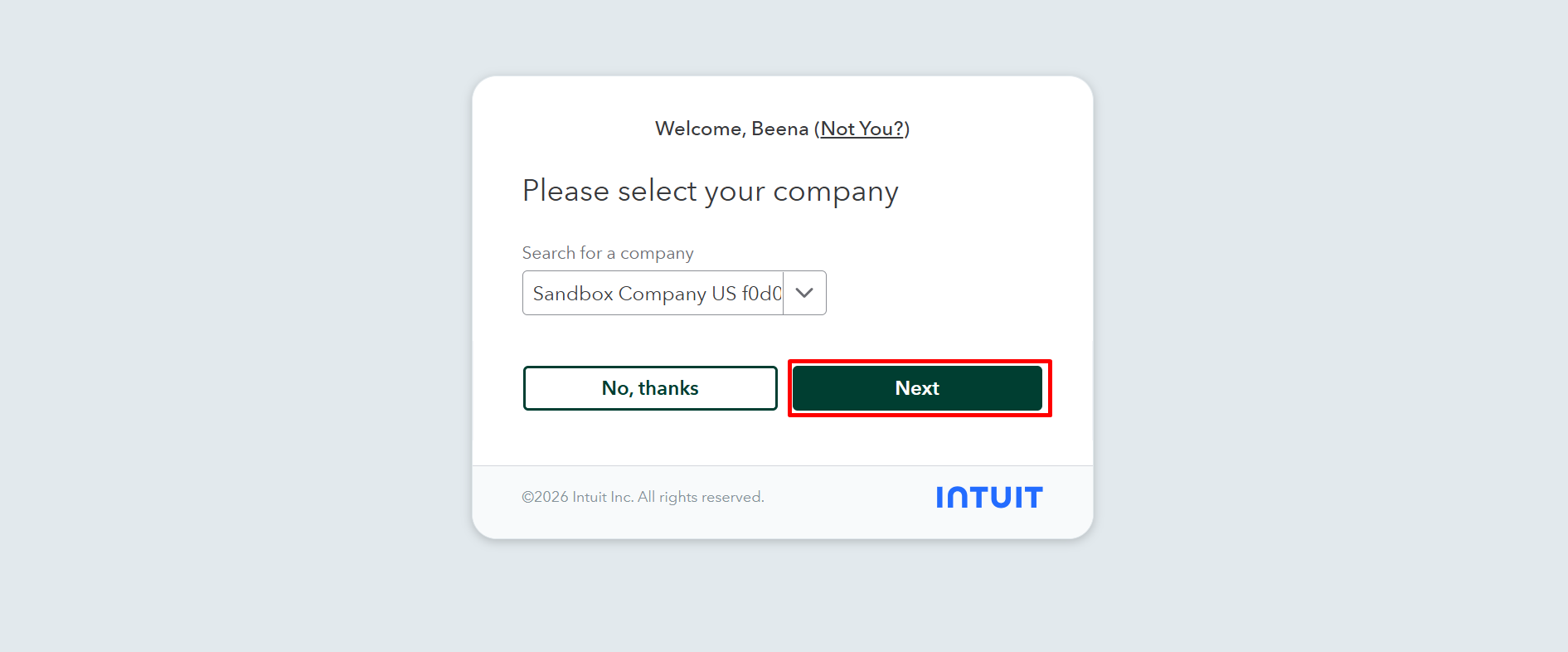
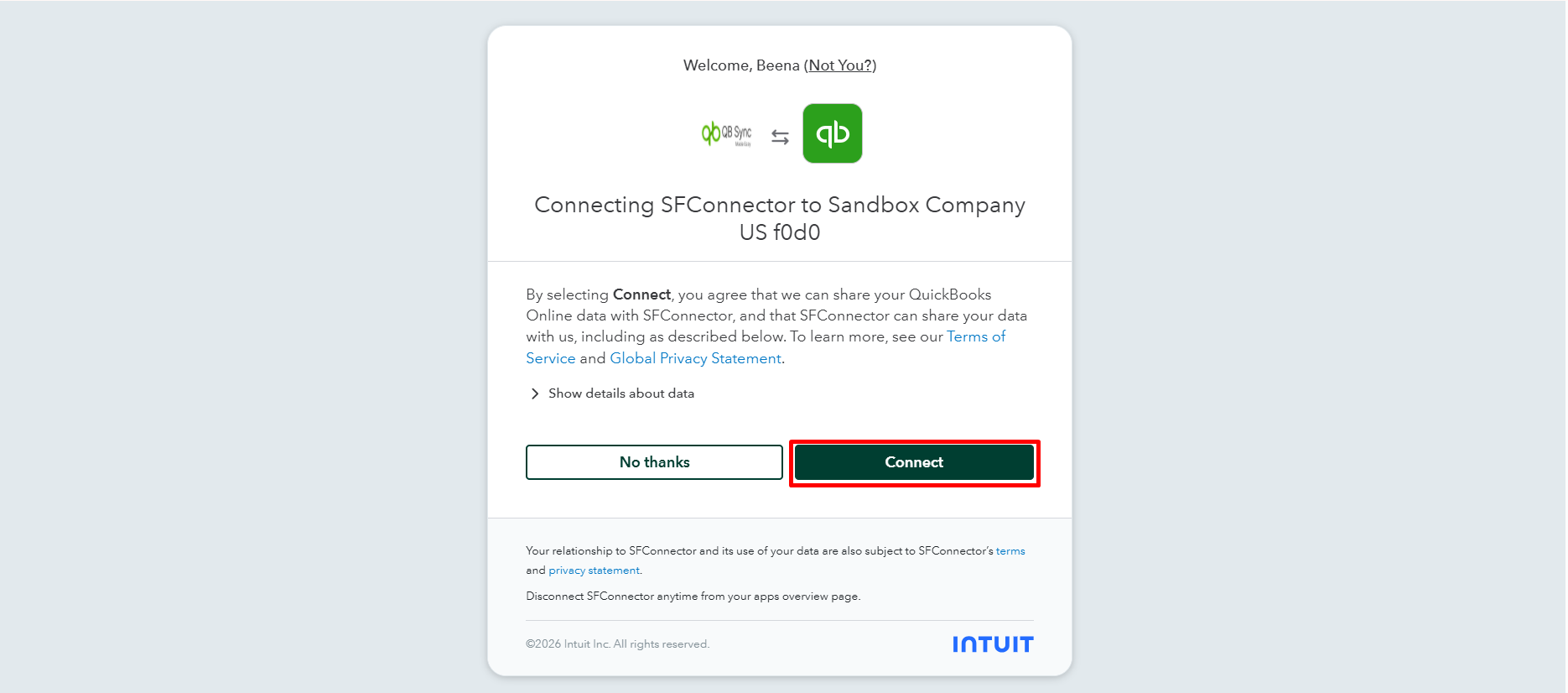
Step 5: Select the correct credentials and click the Log In button.
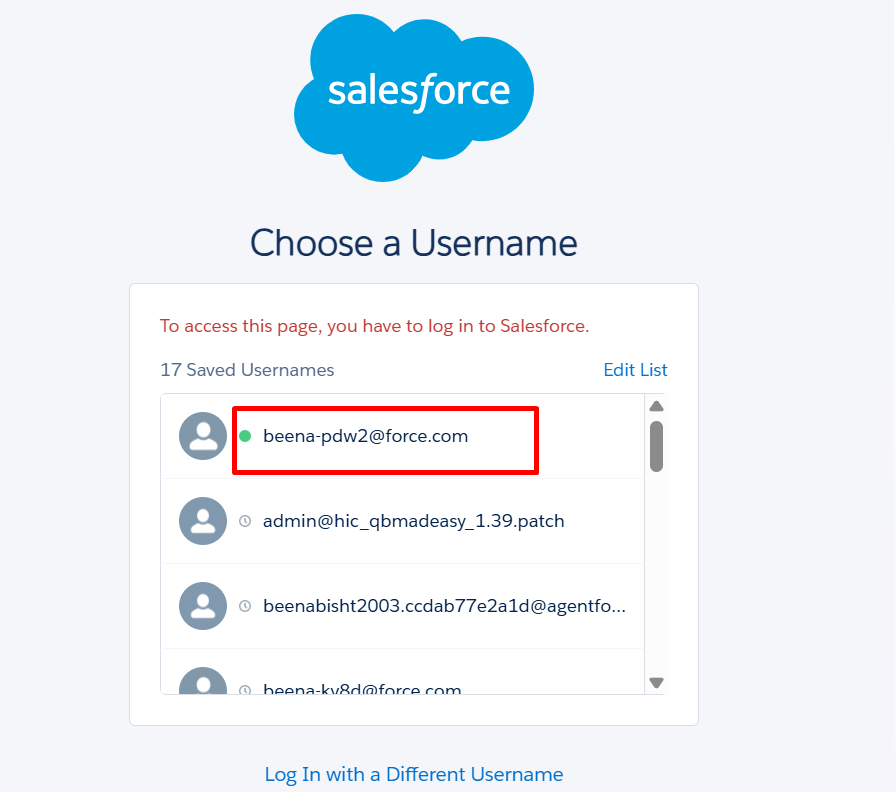
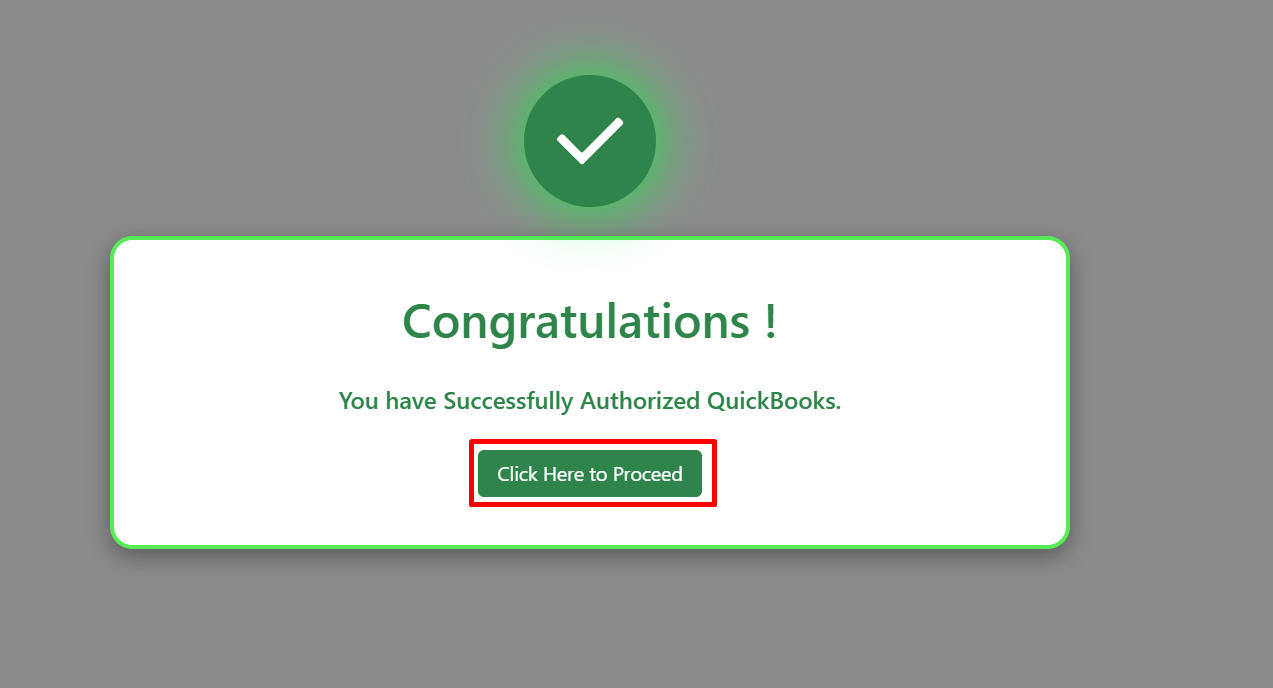
Step 6: After successful authentication, a confirmation page will appear indicating that the QuickBooks company has been connected successfully. Click the Click Here button to continue.
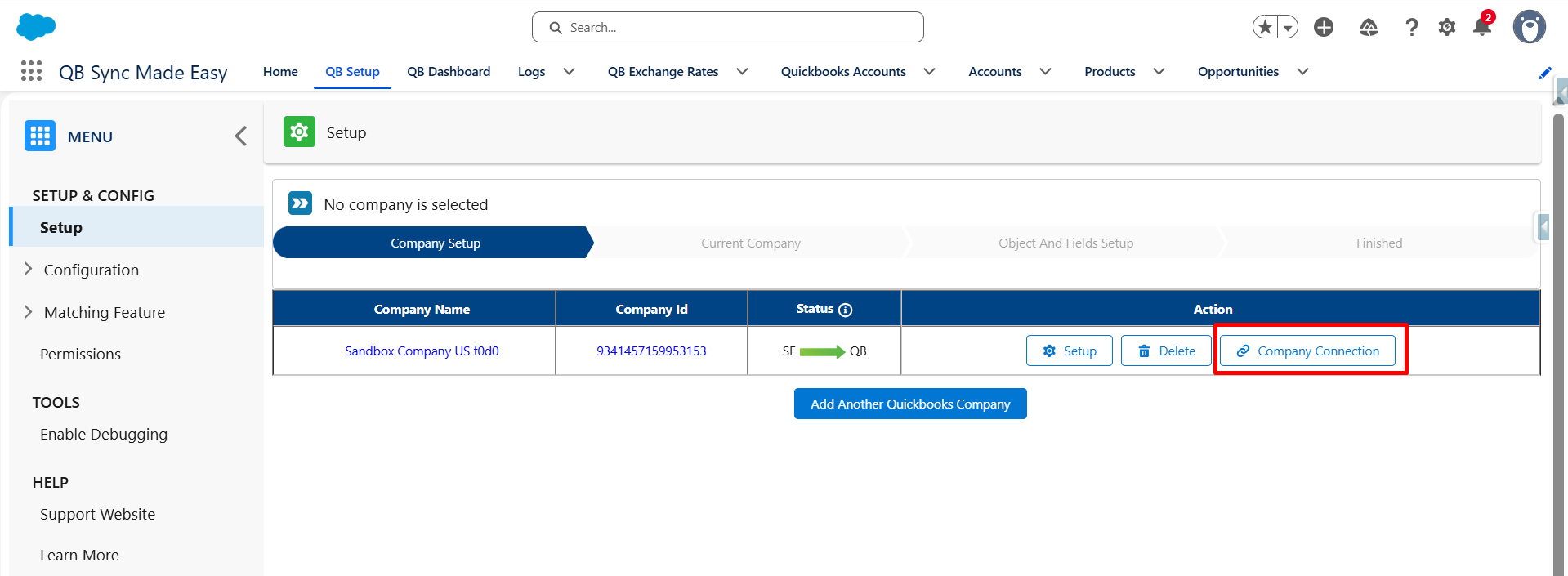
Step 7: Click the Company Connection button.
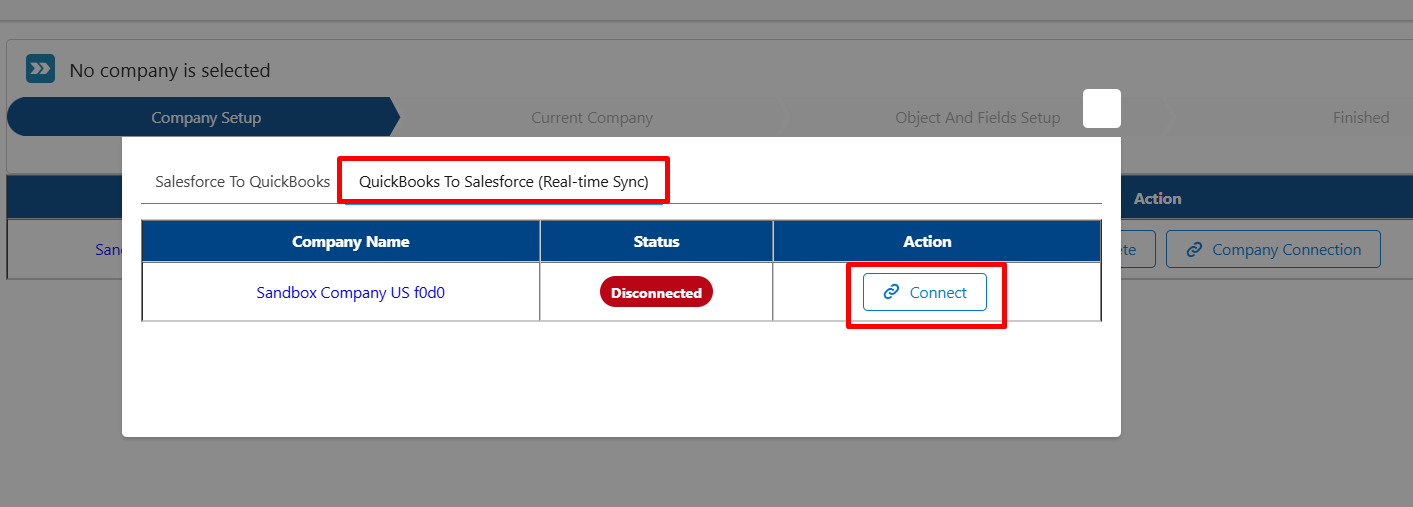
Step 8: Select QB to SF real-time configuration and click the Connect button.
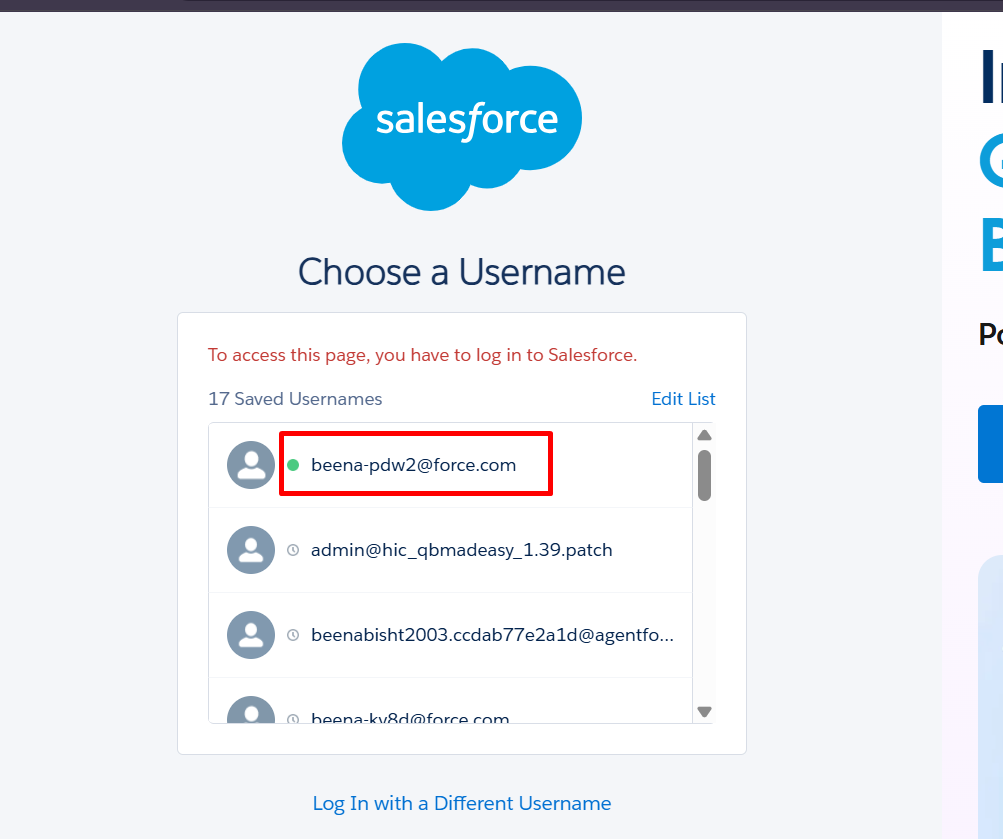
Step 9: Choose the correct credentials for the connection.
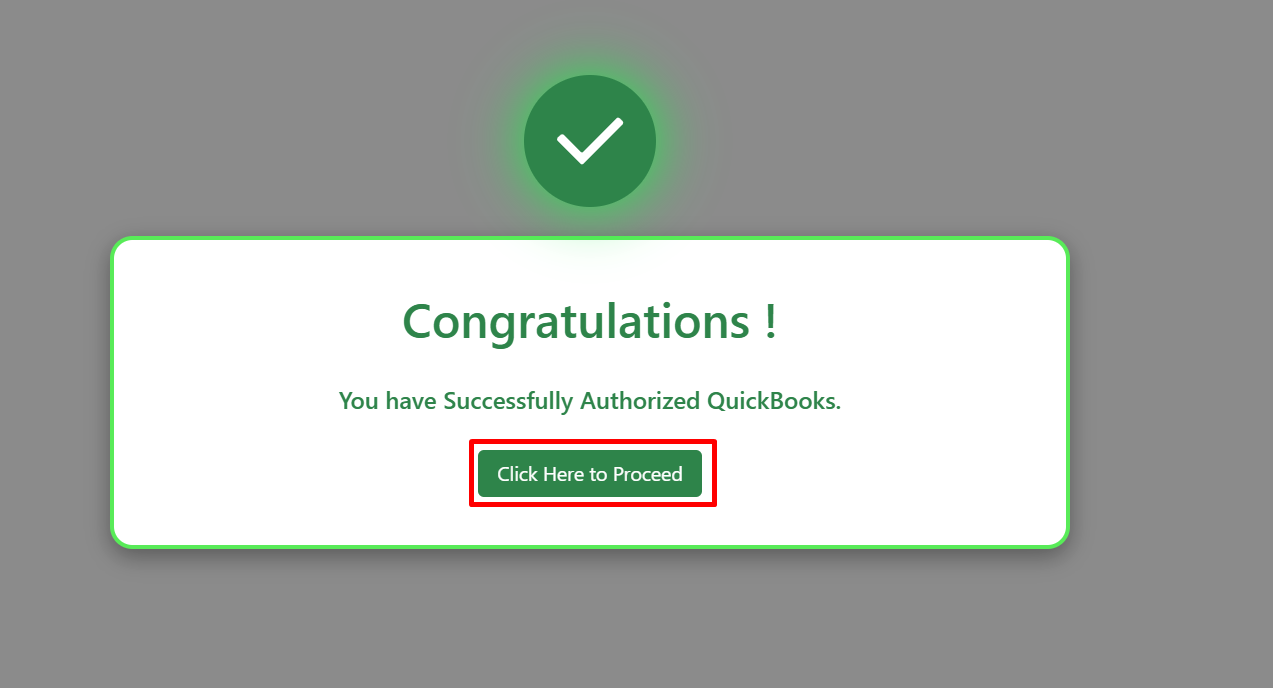
Step 10: A final confirmation page will appear. Click the Click Here to Proceed button.
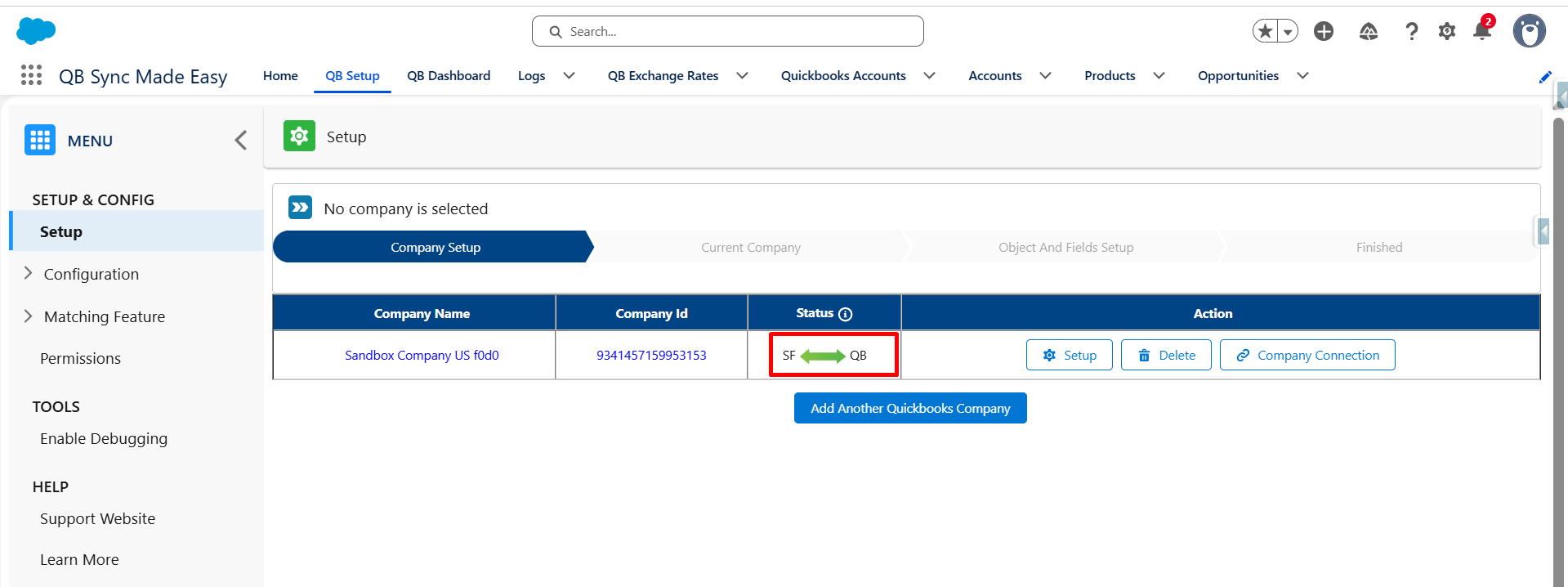
Step 11: Both company connections will now be successfully established in both directions.
Was this article helpful?
That’s Great!
Thank you for your feedback
Sorry! We couldn't be helpful
Thank you for your feedback
Feedback sent
We appreciate your effort and will try to fix the article