Step-by-Step Guide: Connect Multiple QuickBooks Companies in QB Sync Made Easy
Before connecting multiple companies, make sure you’ve already installed QB Sync Made Easy in Salesforce.
Follow this installation guide to complete the setup.
Part 1: Open the QB Setup Tab
From the App Launcher, search for QB Sync Made Easy.
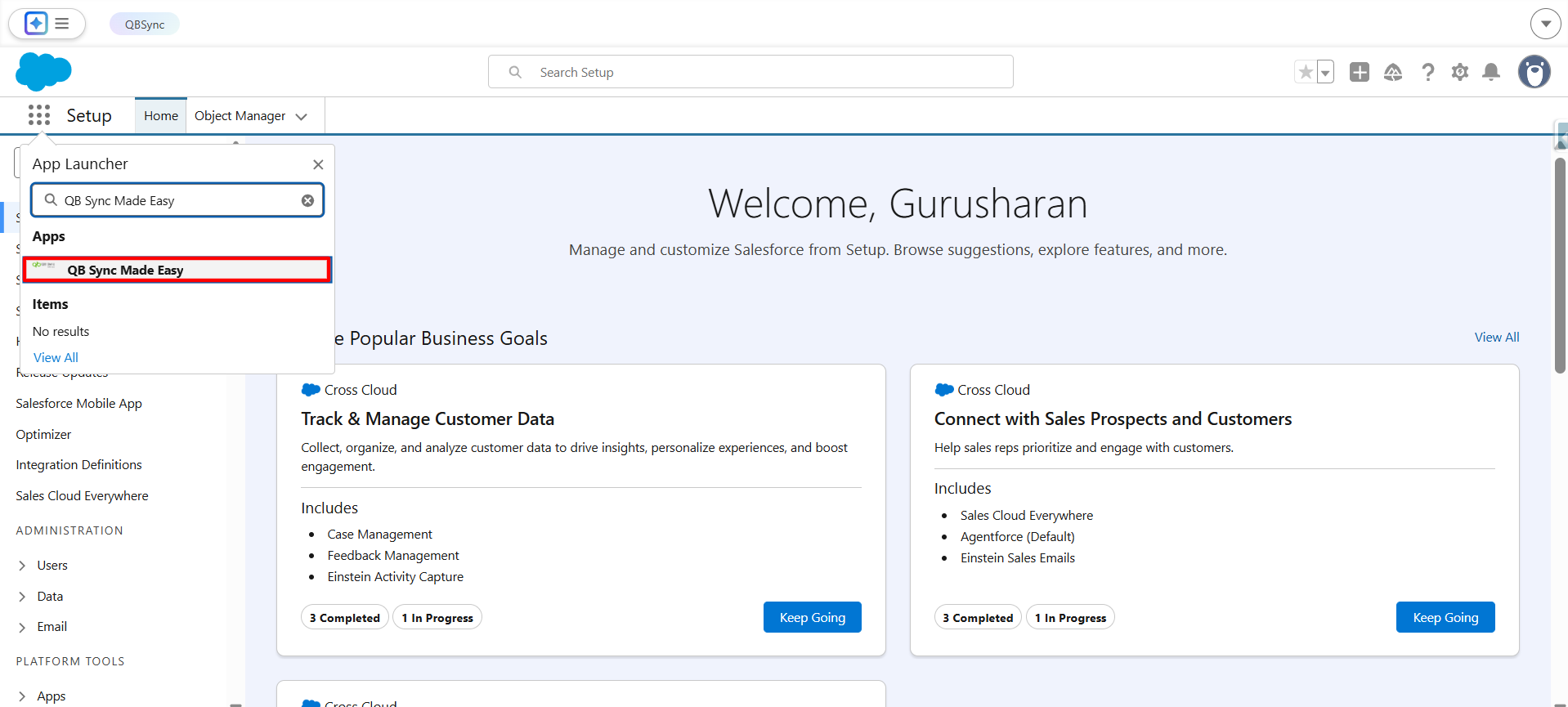
Click on the QB Setup tab
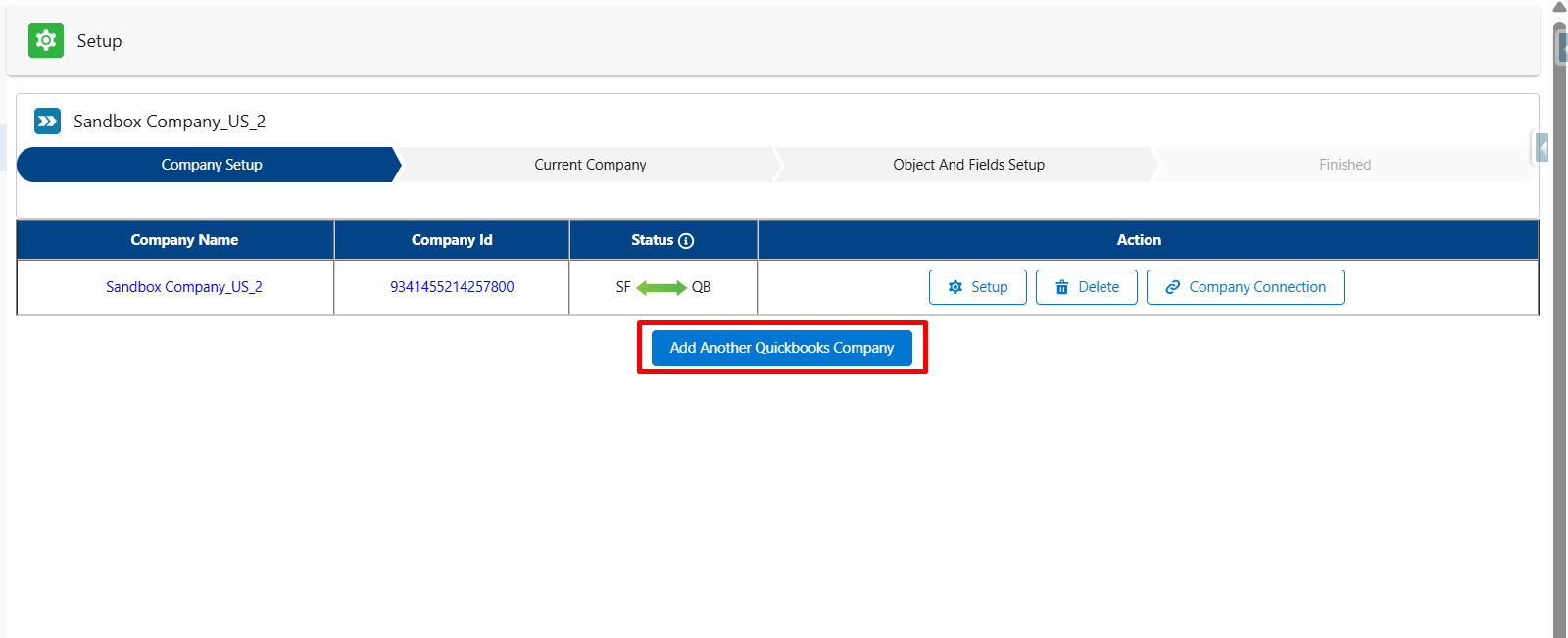
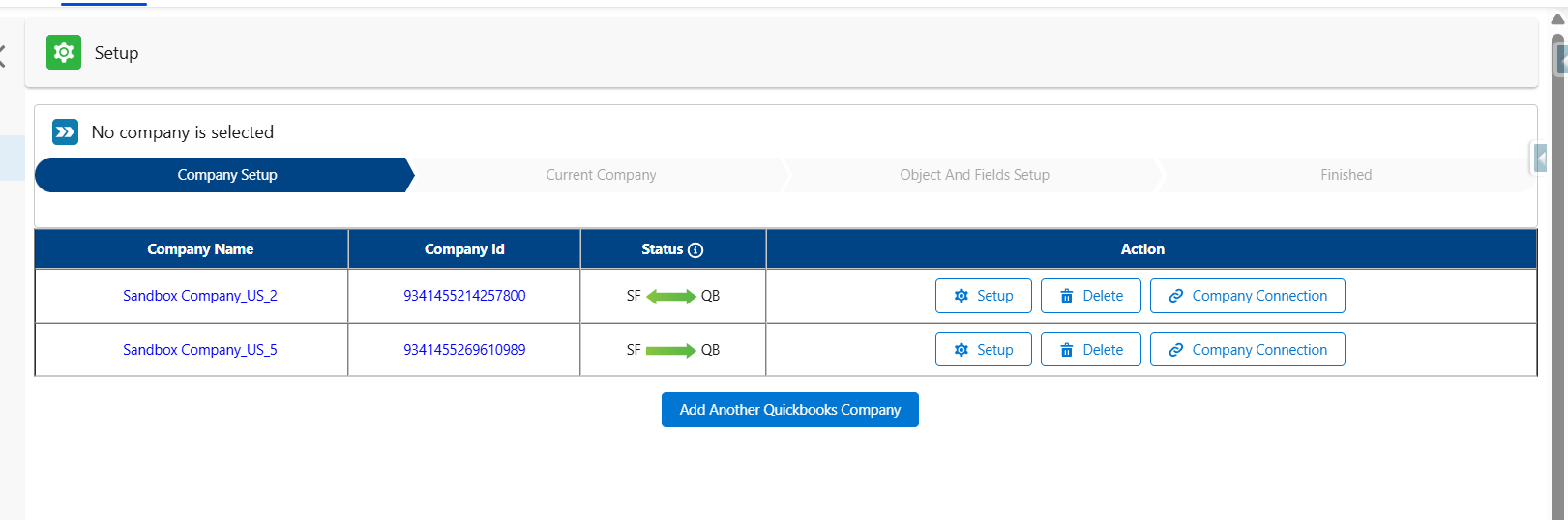
Here, you’ll see a list of all the QuickBooks companies already connected, along with their Company Name, ID, and Status.
Part 2: Add a New QuickBooks Company
Click on "Add Another QuickBooks Company".
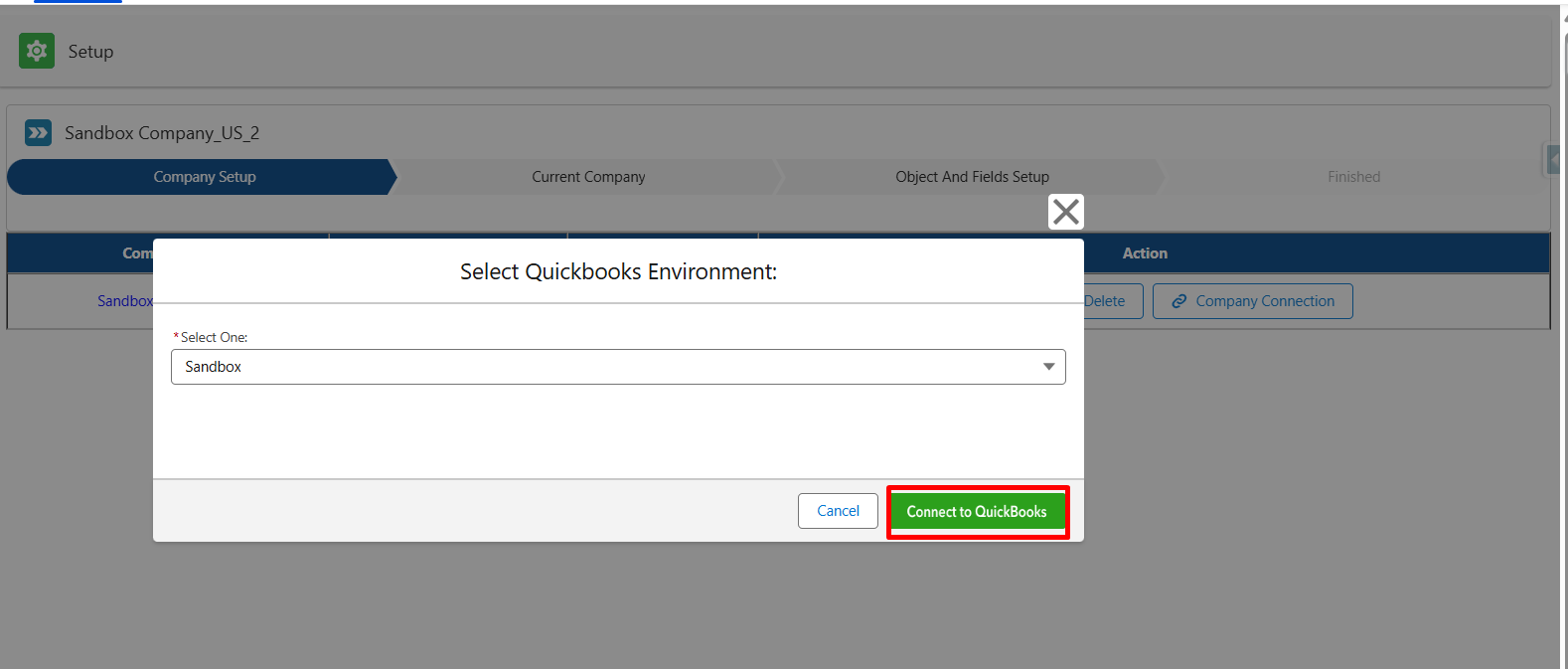
Select the environment (Sandbox or Production).
Click “Connect to QuickBooks.”
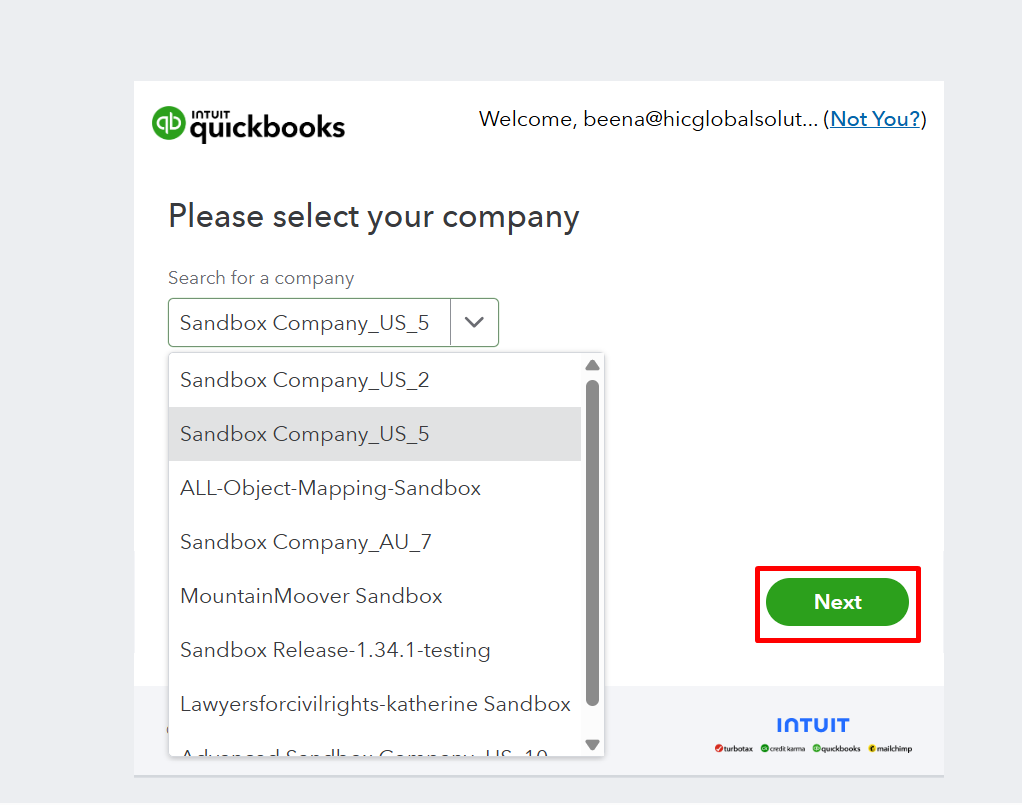
Choose the QuickBooks company you want to connect.
Click Next.
Click Connect.
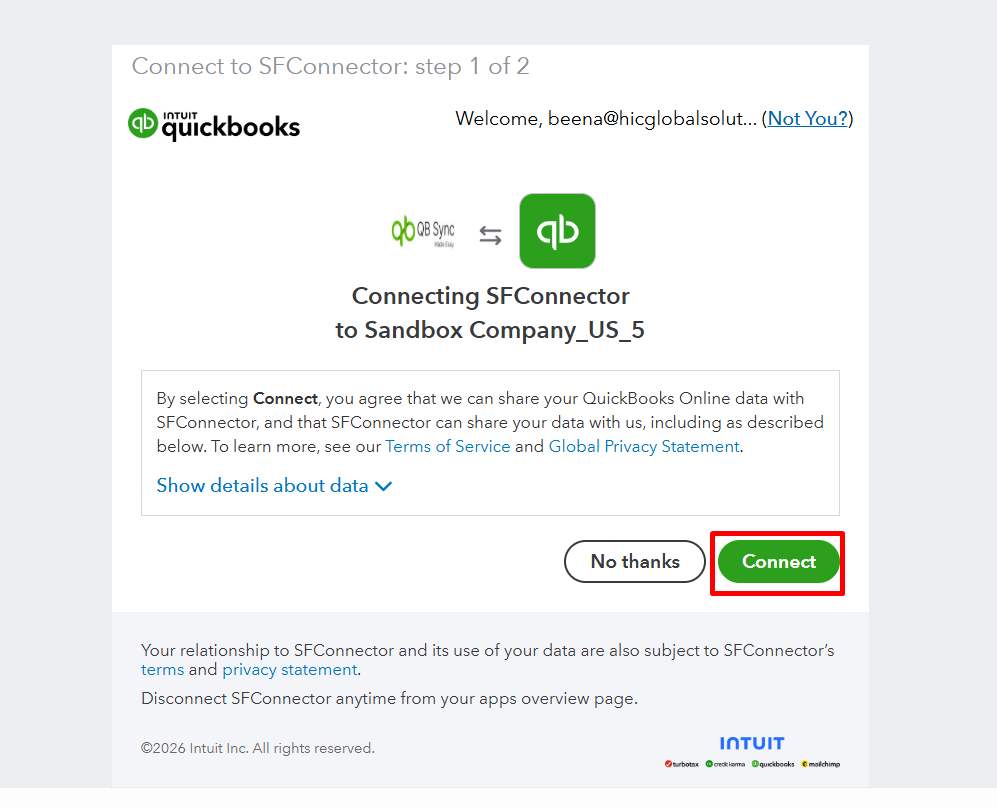
Log in with valid Salesforce credentials.

Click “Click here to proceed.”

Part 3: Confirmation
Once connected successfully, the new QuickBooks company will appear separately in the list on the QB Setup tab.
Was this article helpful?
That’s Great!
Thank you for your feedback
Sorry! We couldn't be helpful
Thank you for your feedback
Feedback sent
We appreciate your effort and will try to fix the article