The Debug Logging feature in QB Sync Made Easy helps identify errors when records or data fail to sync between Salesforce and QuickBooks Online (QBO).
When debugging is enabled, sync-related messages and errors are recorded in the Logs object in Salesforce. These logs can help determine why a record was not successfully synced.
How to Enable Debug Logging
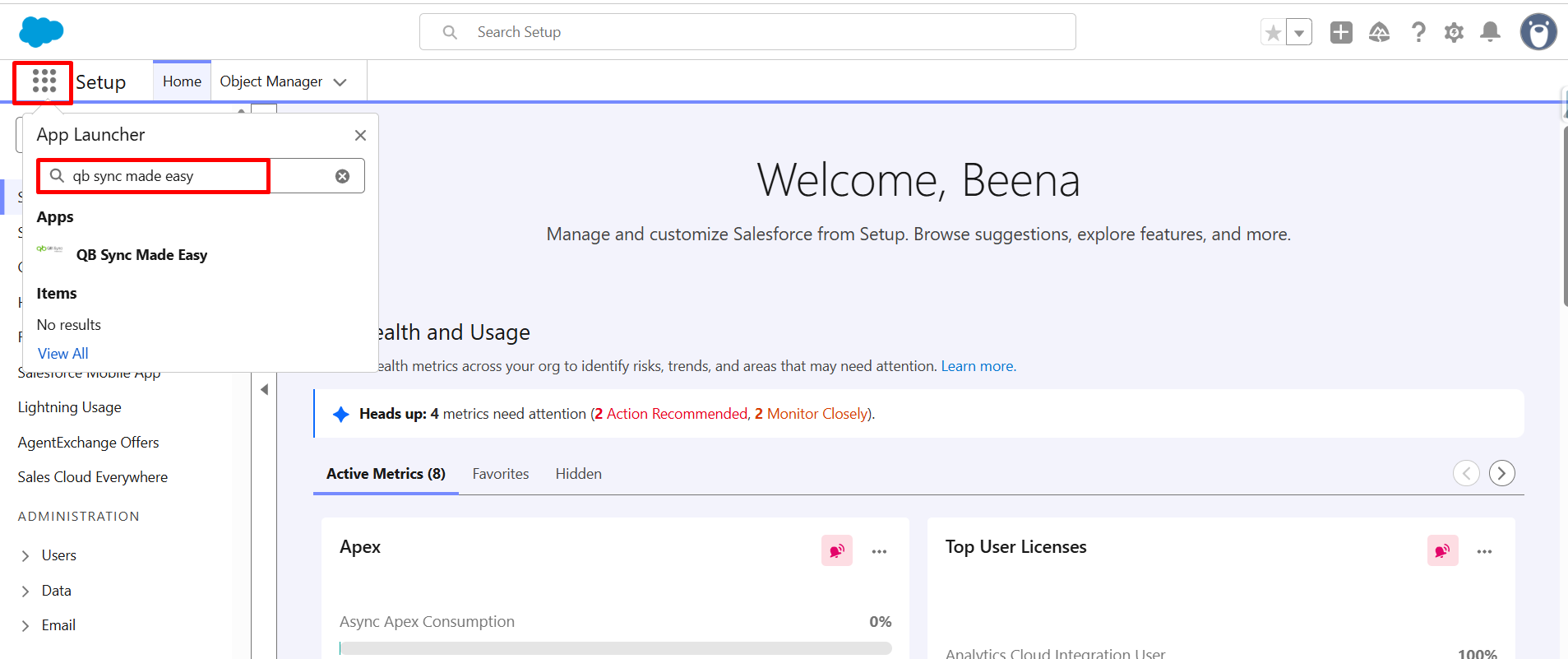
Step 1: Open QB Sync Made Easy
In Salesforce, search for QB Sync Made Easy using the App Launcher or available Salesforce navigation options.
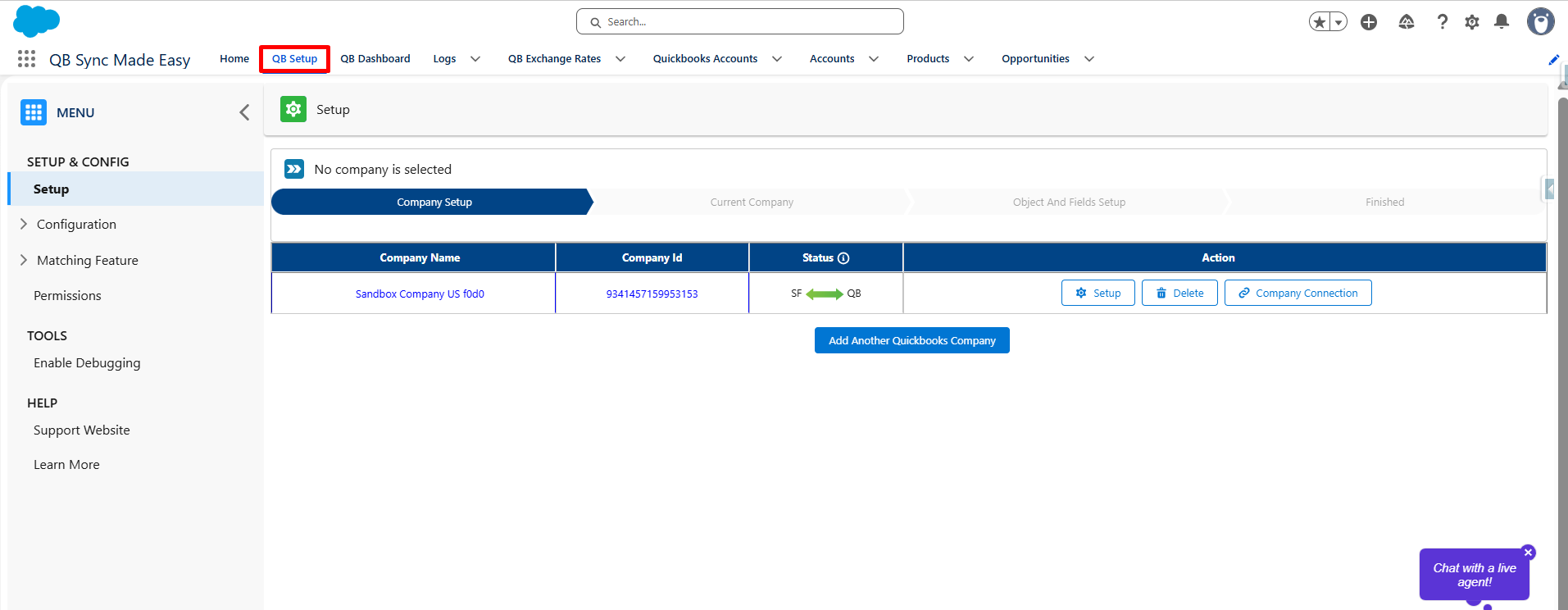
Step 2: Open QB Setup
- Navigate to the QB Setup page.
Step 3: Enable Debugging
- Click Enable Debugging.
- Turn On Logging and Enable Logs toggle and click Save to apply the changes.
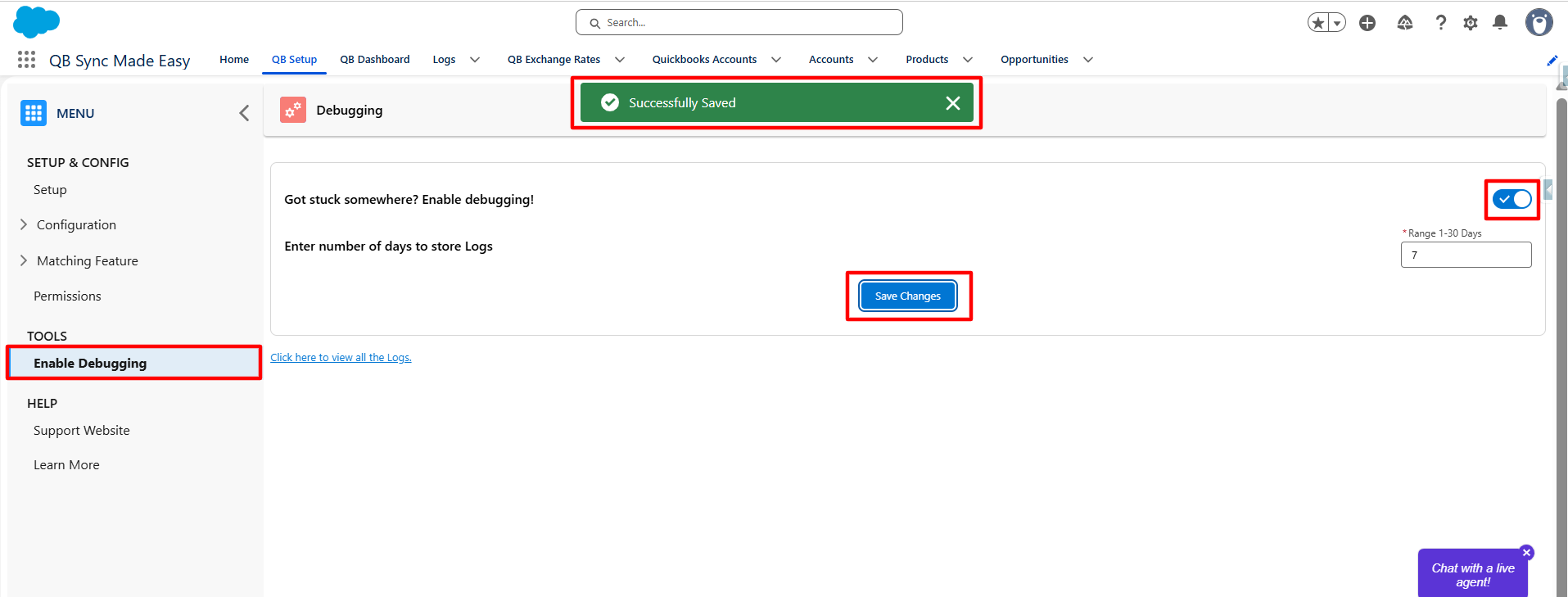
After saving, a successful save confirmation message will be displayed.
Step 4: View Logs object
To view the generated log messages:
- Open the App Launcher in Salesforce.
- Search for the Logs object.
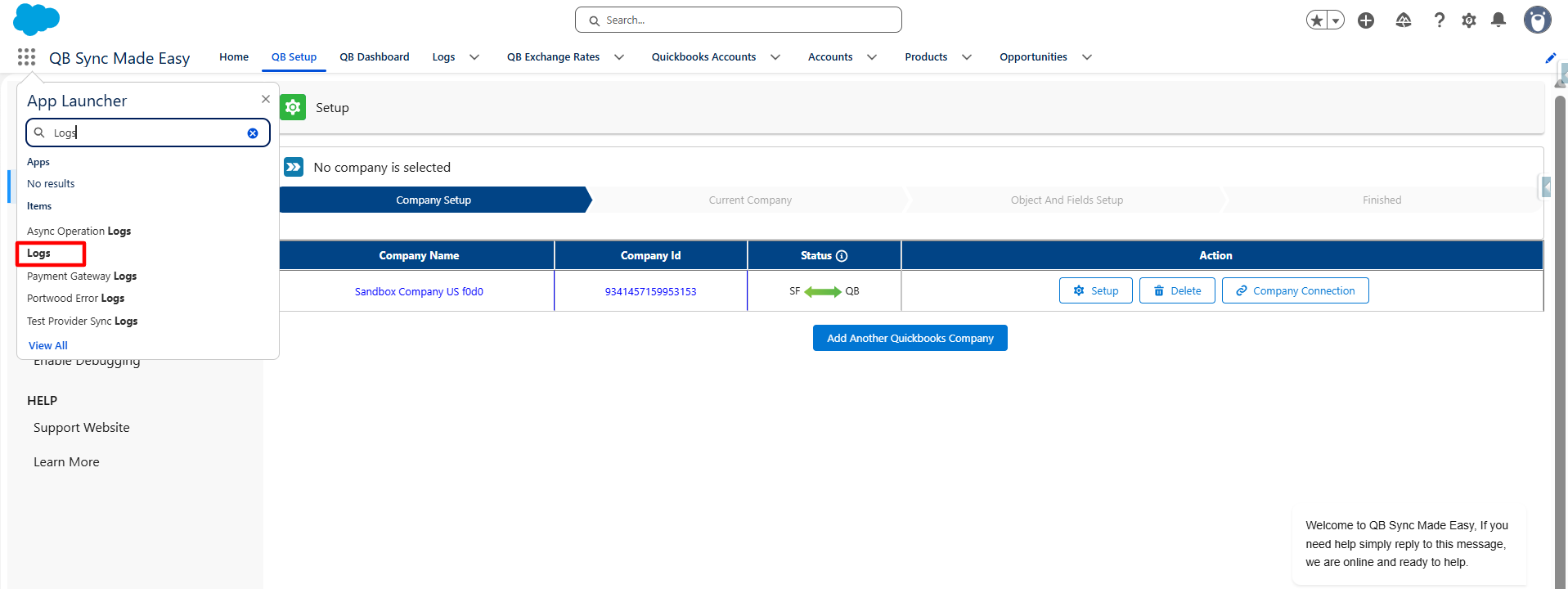
- Open the Logs object.
- Review the available log records and messages.
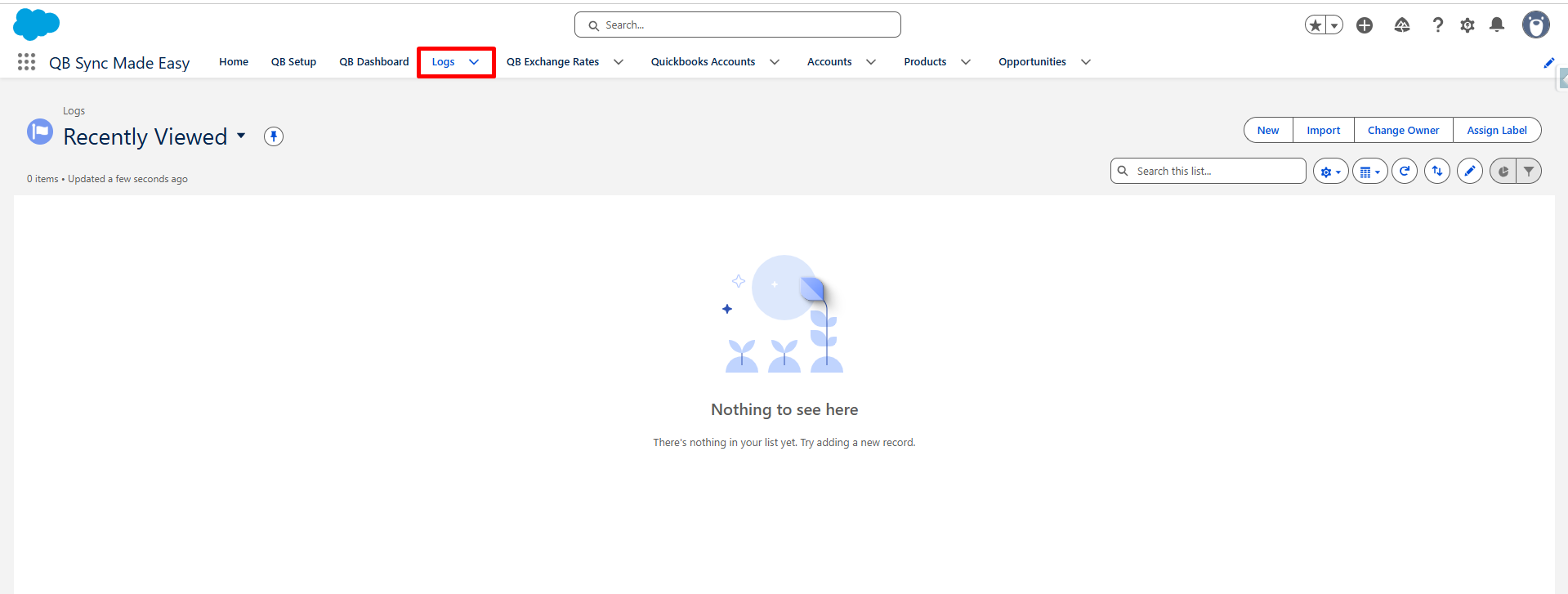
These logs provide details that can help identify the reason for a sync failure.
Example: Identifying a Sync Error
Consider the following scenario:
- An Account already exists in QuickBooks Online as a Customer.
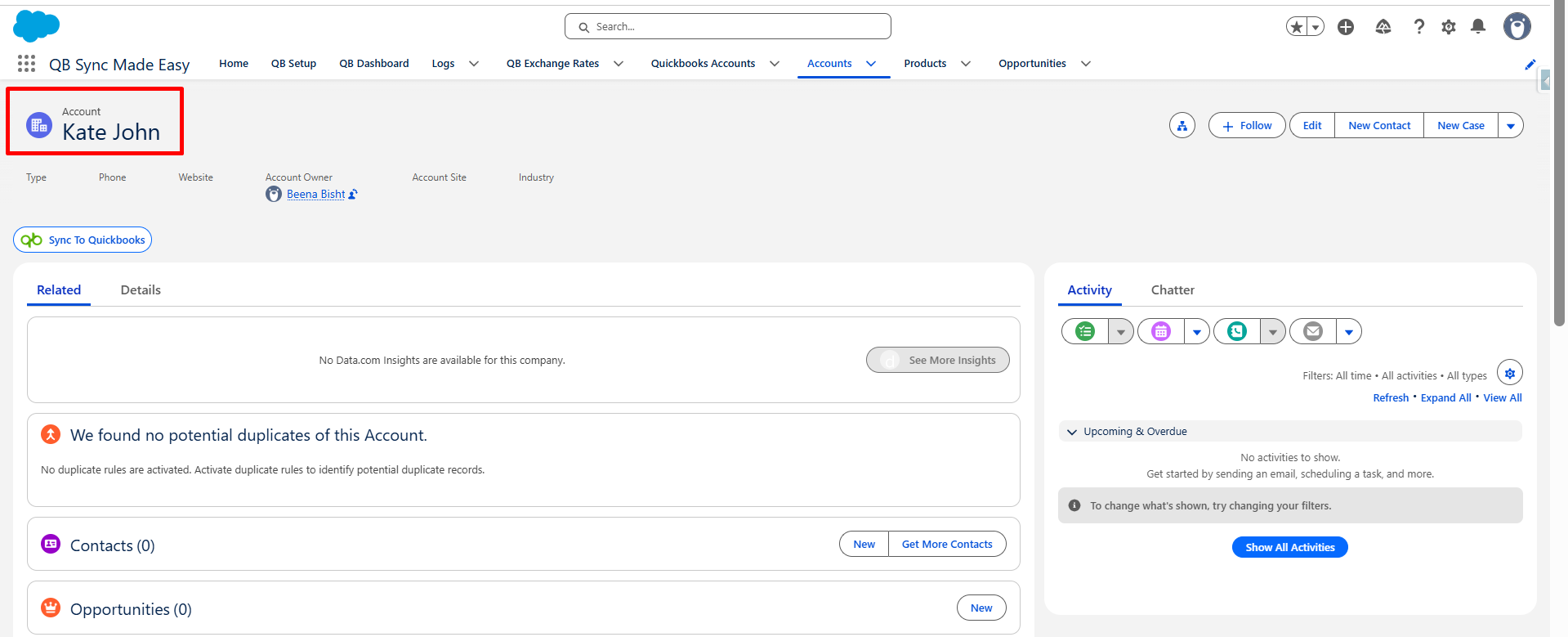
- A new Salesforce Account is created with the same name.
- The Salesforce Account is then synced to QuickBooks Online.
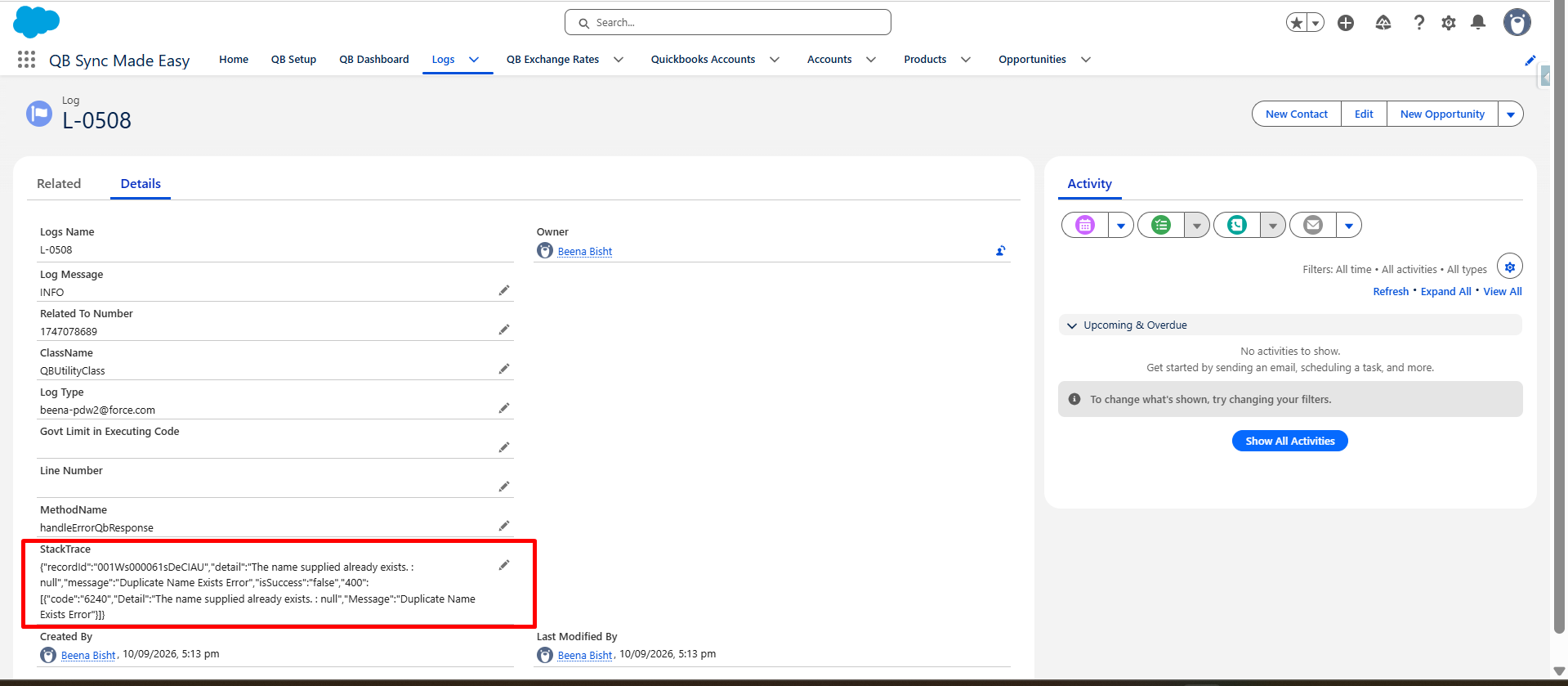
- QuickBooks Online rejects the sync because a Customer with the same name already exists or because of a related sync validation.
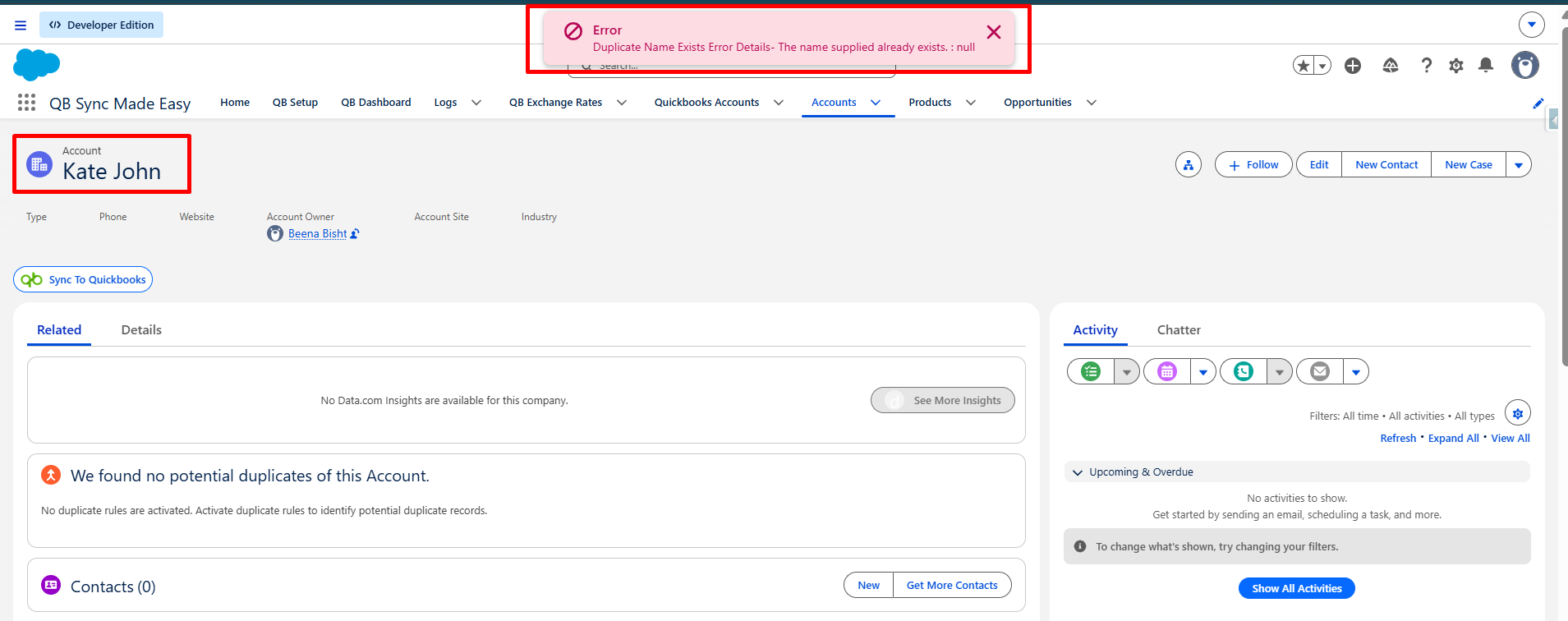
- The sync error is captured in the Logs object.
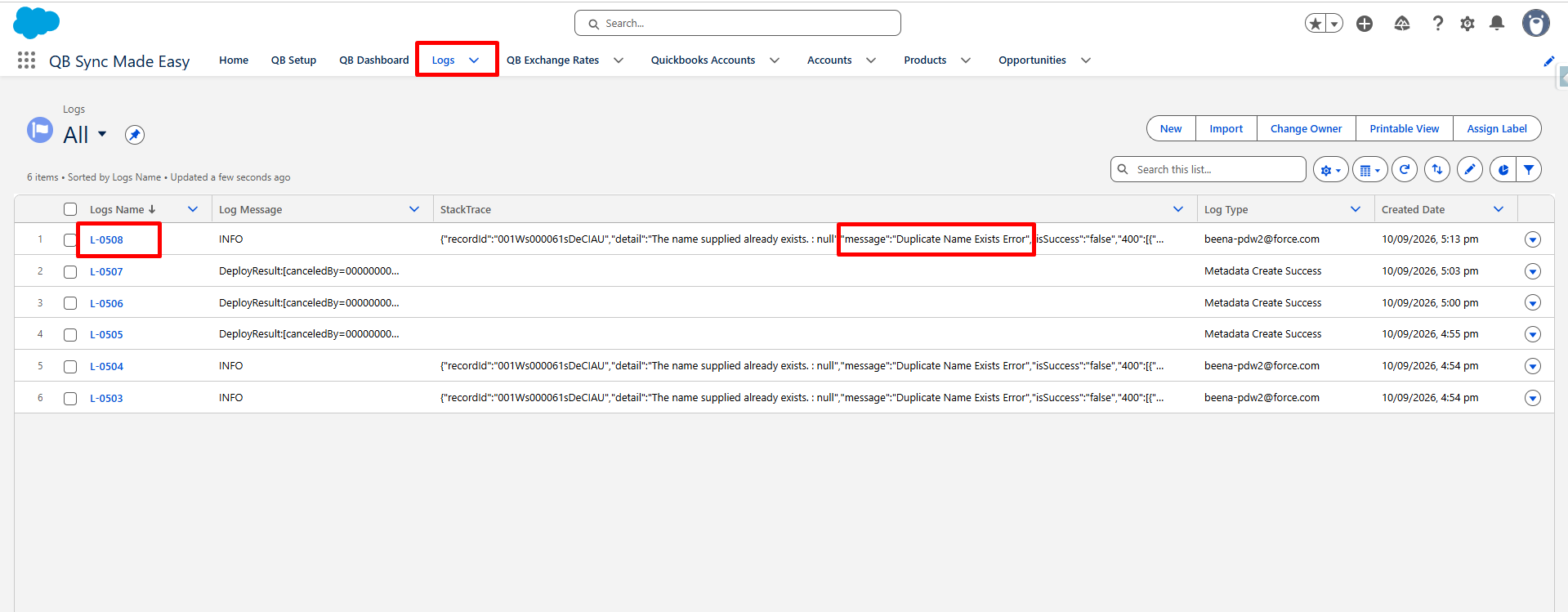
- You can open the corresponding log record in Salesforce to review the error message and use it to identify the cause of the sync failure.
Was this article helpful?
That’s Great!
Thank you for your feedback
Sorry! We couldn't be helpful
Thank you for your feedback
Feedback sent
We appreciate your effort and will try to fix the article