Steps to Use AI-Powered Matching to Avoid Duplicates
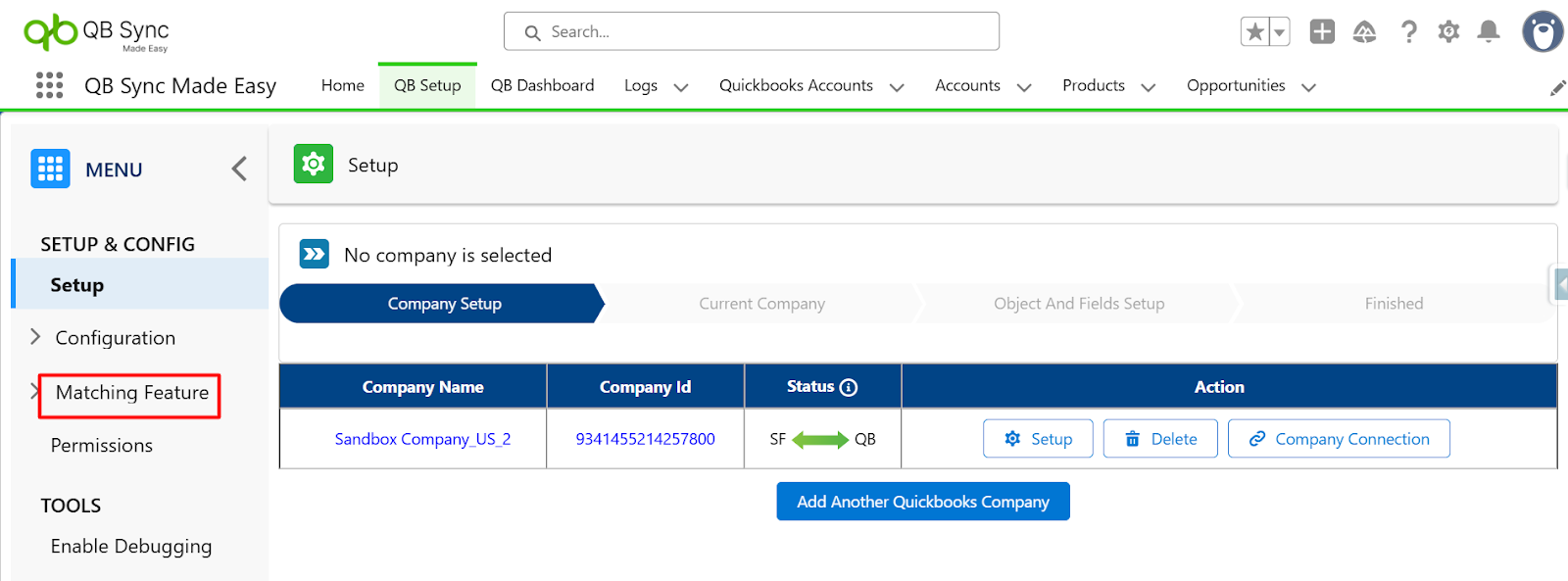
Step 1: Open the QB Setup Page And Click On “Matching Feature” on the Left Side bar.
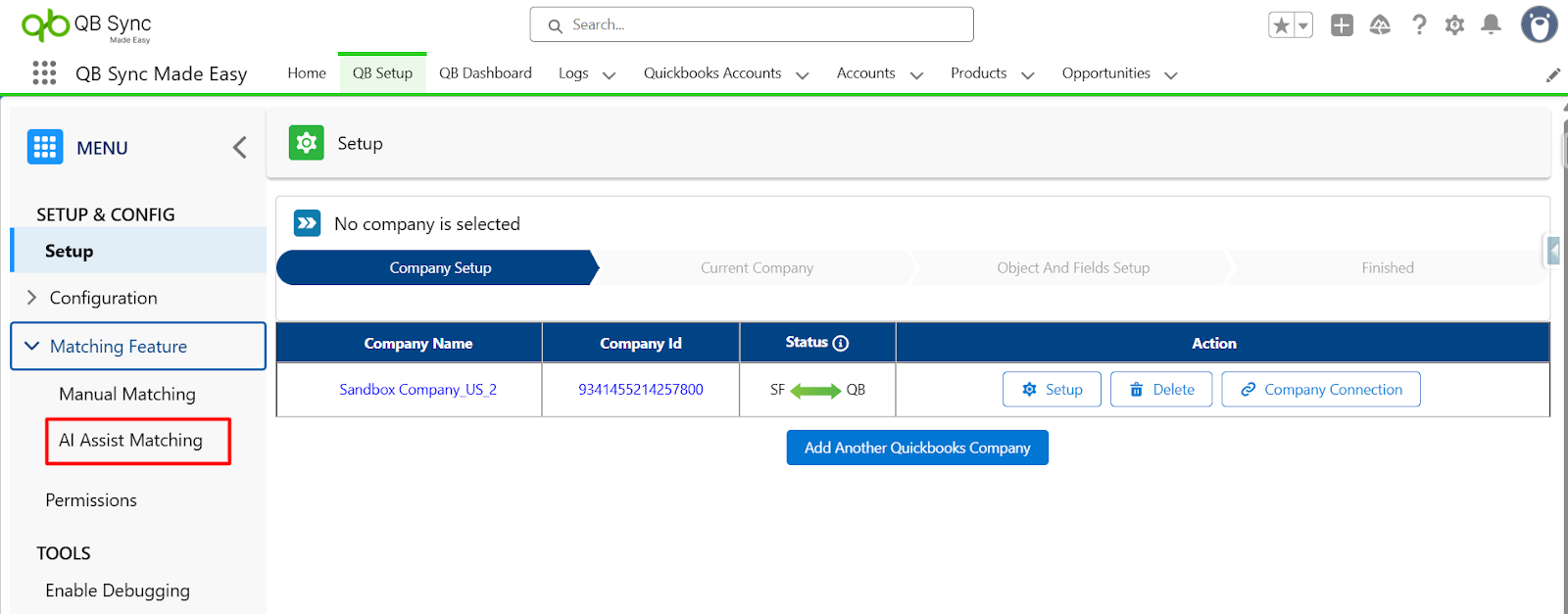
Step 2: Select “AI Assist Matching”
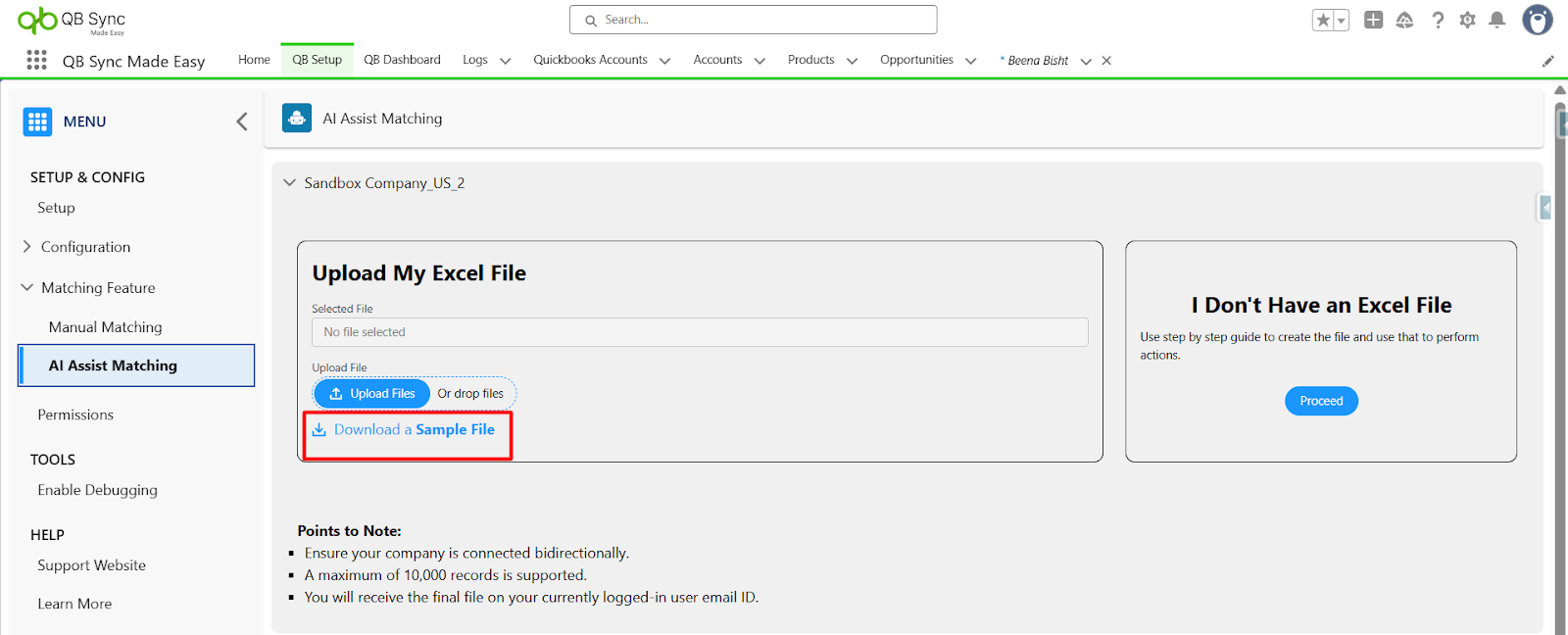
Step 3: Understanding the Input and Output Flow
To use this feature, you need to upload an Excel sheet that contains Salesforce and QuickBooks records, such as names, addresses, emails, and other matching fields. After taking the input, the feature compares and matches the provided records. Once the matching process is completed, it generates an output Excel sheet based on the results.
You can download the sample Excel sheet to understand the required format. This example shows the structure your file must follow in order to use this feature.
Explanation of the File Format
The Excel file contains five columns, each serving a specific purpose:
- Salesforce Matching Field 1
Contains the Salesforce reference value used for matching (e.g., an address or name).
- Salesforce ID
The unique Salesforce record ID associated with the matching field.
- QuickBooks Matching Field 1
Contains the corresponding QuickBooks reference value used for matching (e.g., a location or customer name).
- QuickBooks ID
The unique QuickBooks record ID.
- Input Variable
Additional input is required for the process.
In the example, this column includes values like “Customer.”
If the value displays in scientific notation (e.g., 9.34145E+15), it means the number is very large; Excel automatically formats large numbers this way.

Step 4: Generate or upload your Excel data
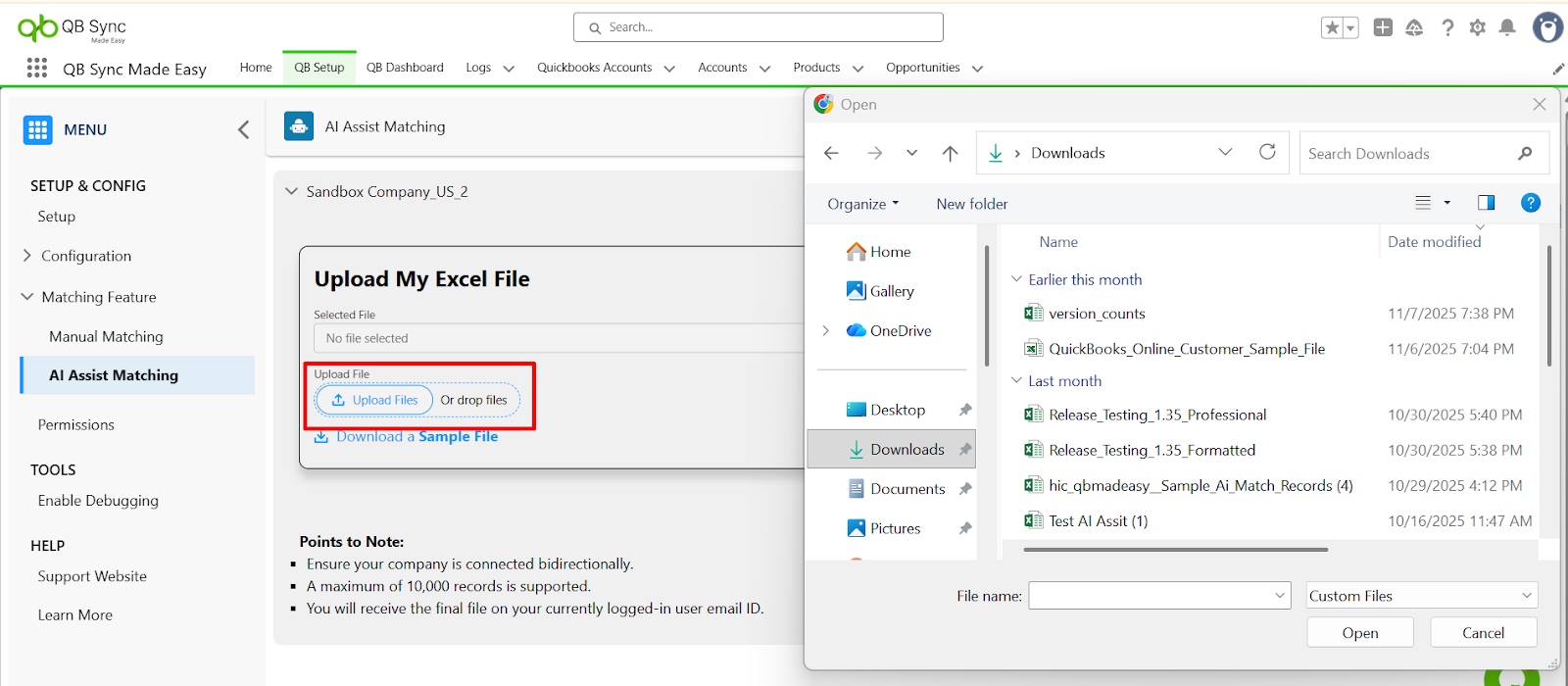
If you want to upload an Excel file from your device
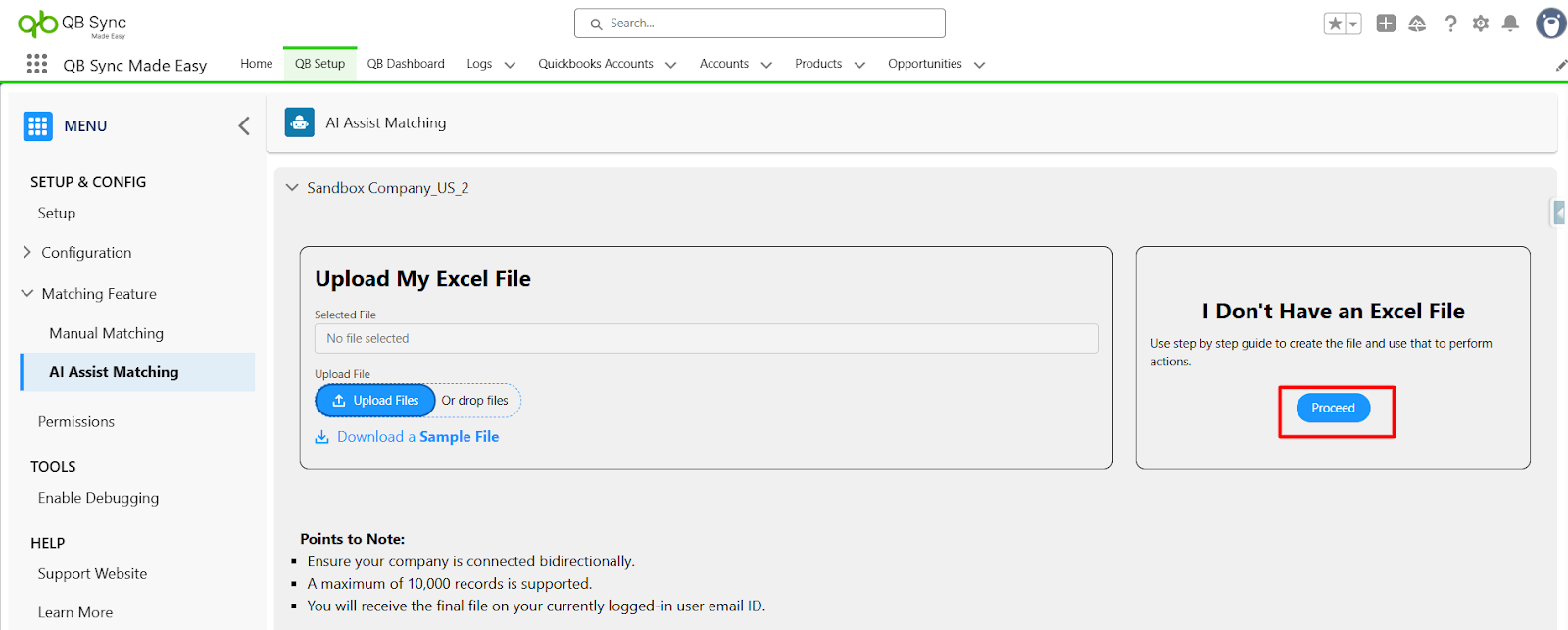
If you want to generate Excel sheets using the AI Assist Matching feature. Then click on the Proceed Button
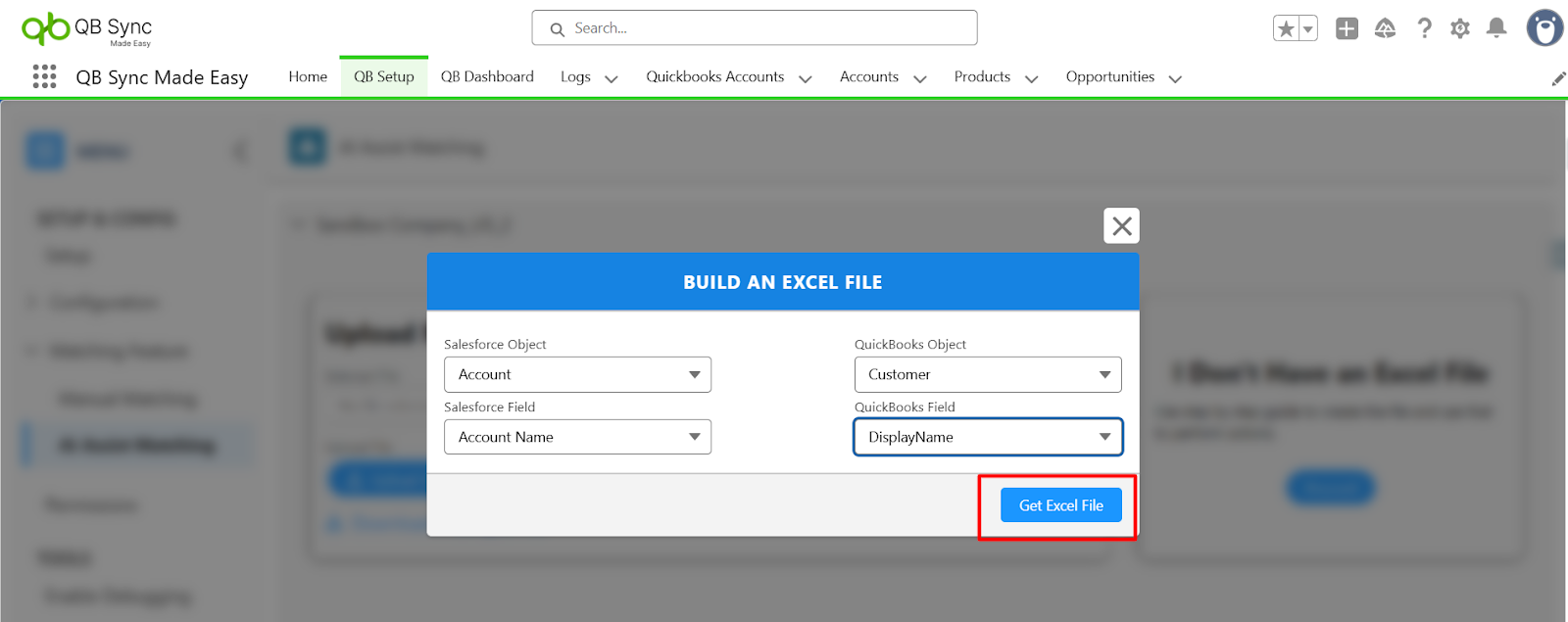
After completing the previous step, a dialog box will appear. Fill in all the dropdown fields, then click the Get Excel File button.
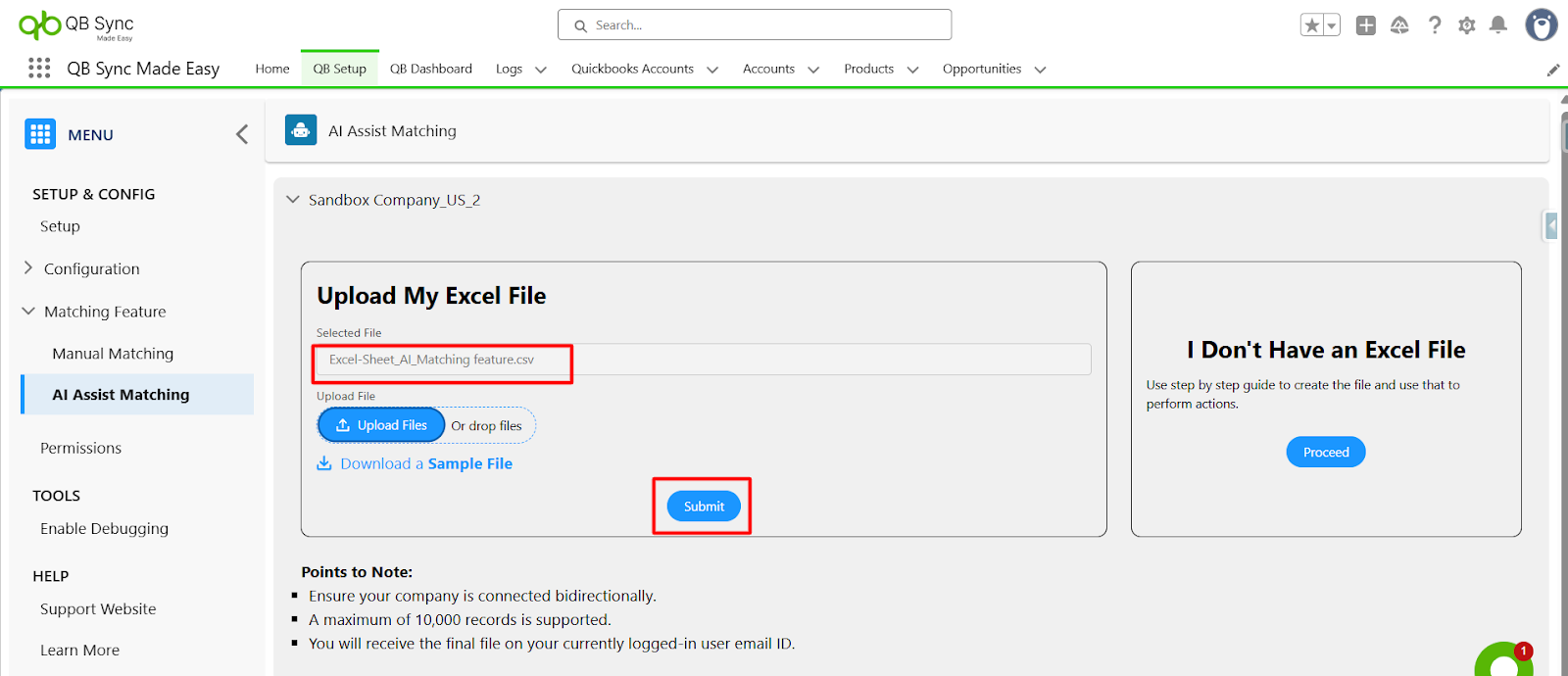
Step 5: Submit it for AI matching
Download the Excel sheet, upload it, and then click the Submit button.
Step 6: Receive your detailed match report via email
After the matching process is completed, an Excel file will be sent to the email address that is connected to your organization. This file will contain three worksheets: Matched, Need Review, and Import.
- The Matched sheet will include the records that were successfully matched.
- The Need Review sheet will contain the records that could not be matched.
- The Import sheet will list the records that can be imported into your organization.

Step 7: Bulk update your Salesforce records using the included import sheet
The import sheet contains the records that are ready to be added to your organization. You can import this data using the Data Loader. After the import is completed, the QuickBooks ID will be added to your records, allowing both systems to stay synced with each other.
Was this article helpful?
That’s Great!
Thank you for your feedback
Sorry! We couldn't be helpful
Thank you for your feedback
Feedback sent
We appreciate your effort and will try to fix the article