Steps to Use the Manual Matching Feature
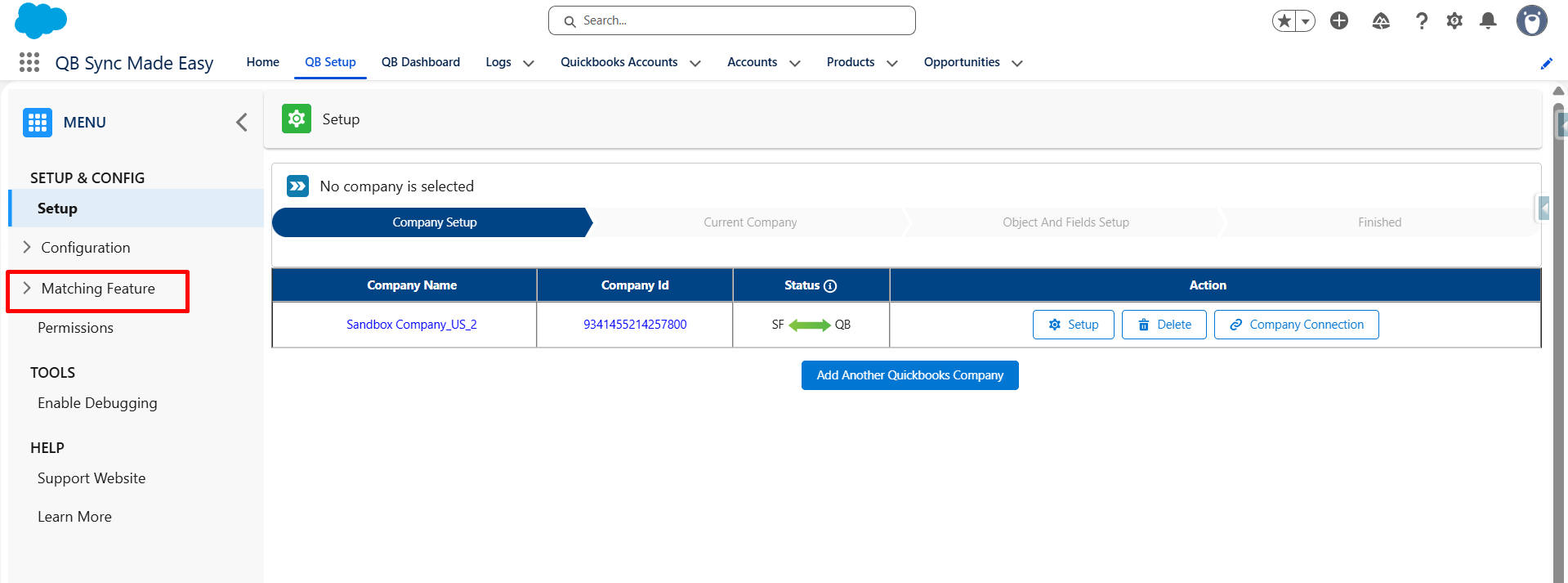
Step 1. Open the QB Setup Page and click on “Matching Feature” on the left sidebar.
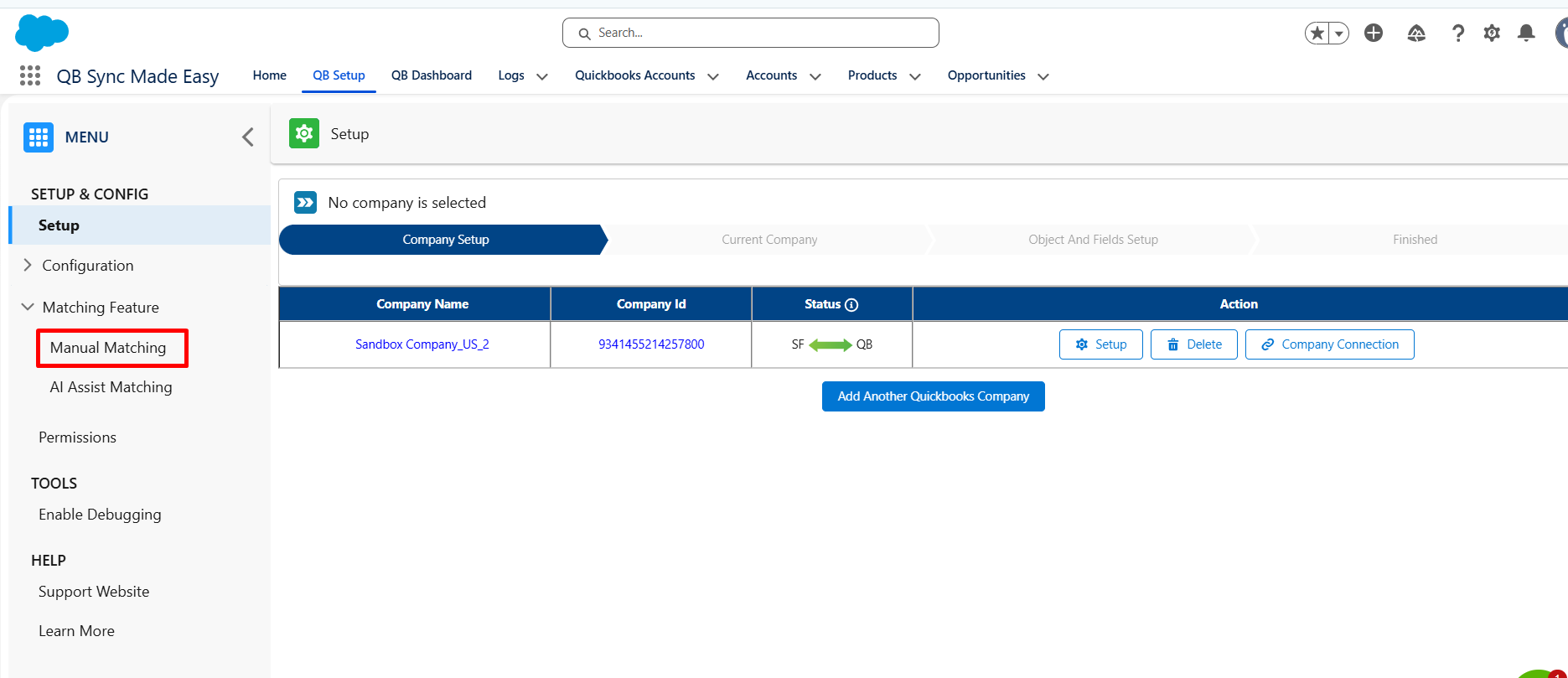
Step 2. Click on the Matching Feature and select Manual Matching.
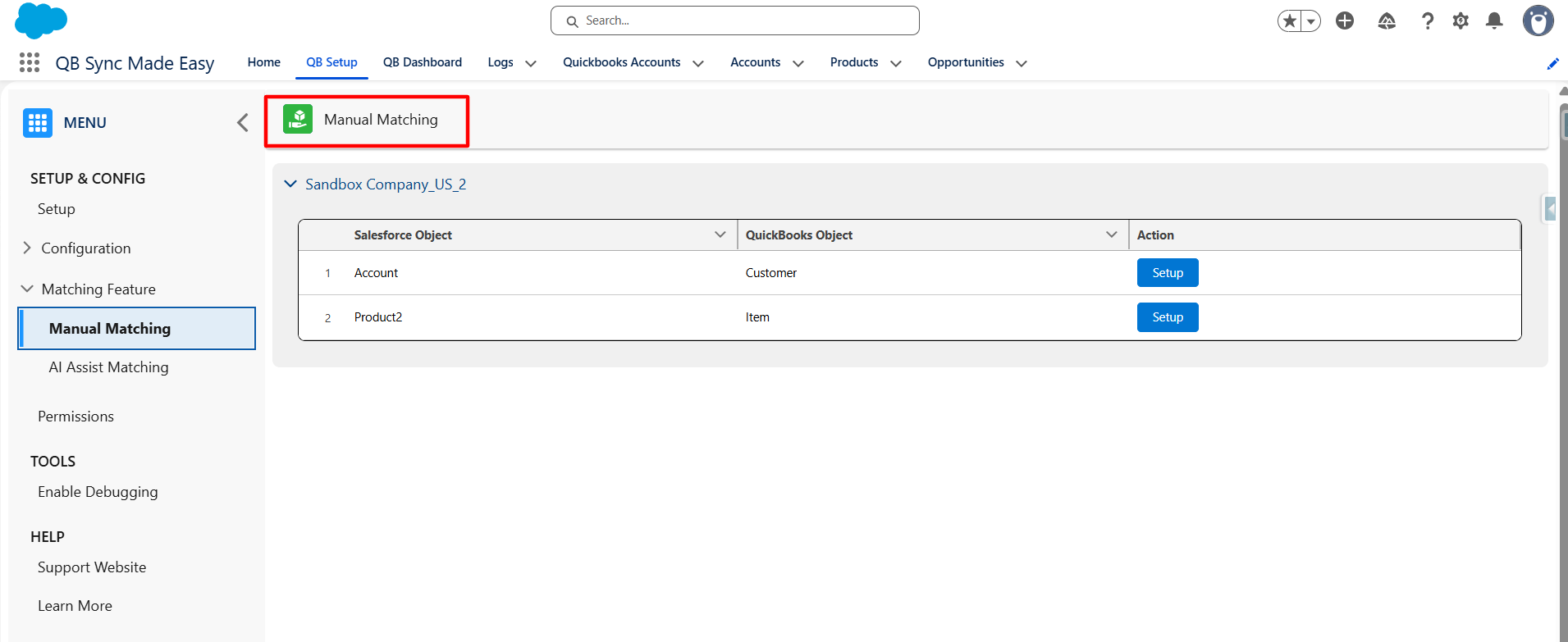
Step 3. Connected Company and Its Objects
Here, you can view the company name and all mapped Salesforce and QuickBooks objects.
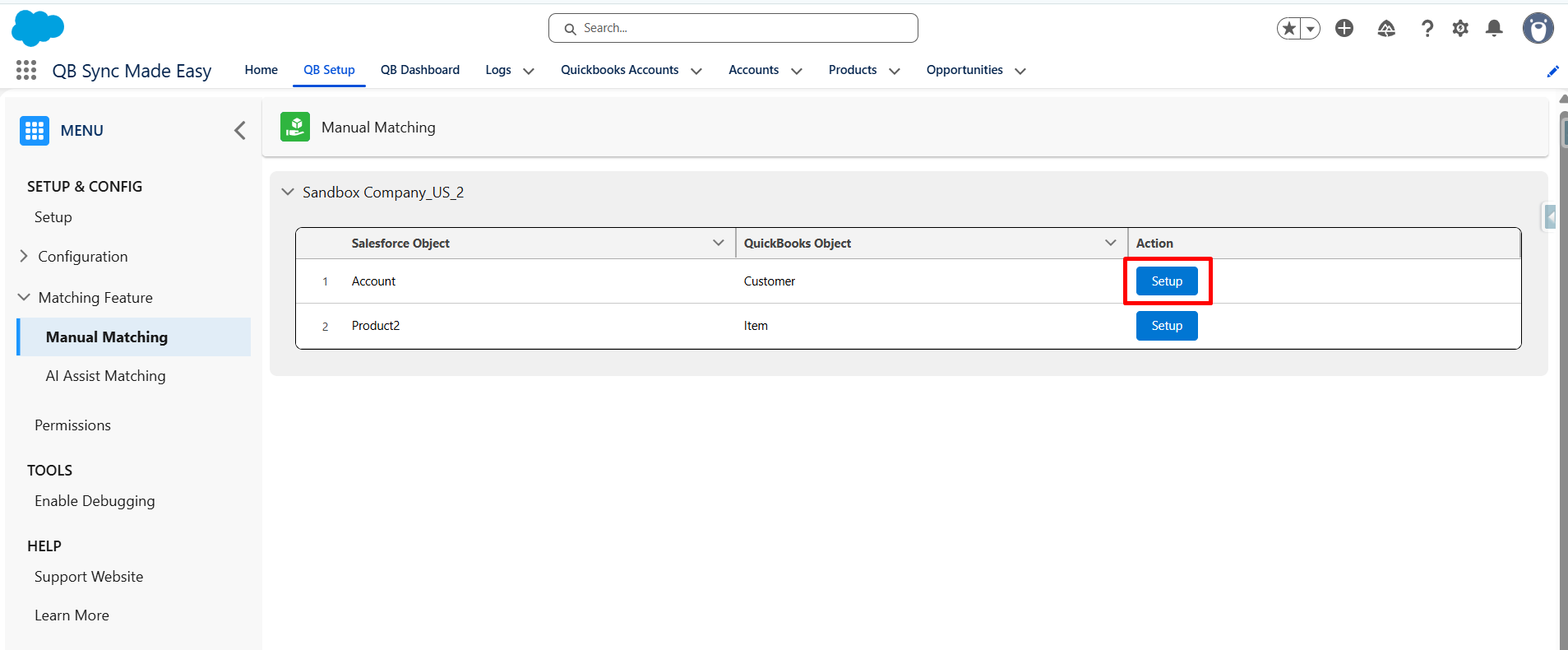
Step 4. Click Setup, next to the object you want to manually match.
Click Setup, next to the object you want to manually match.
Steps to Use the Manual Matching Feature
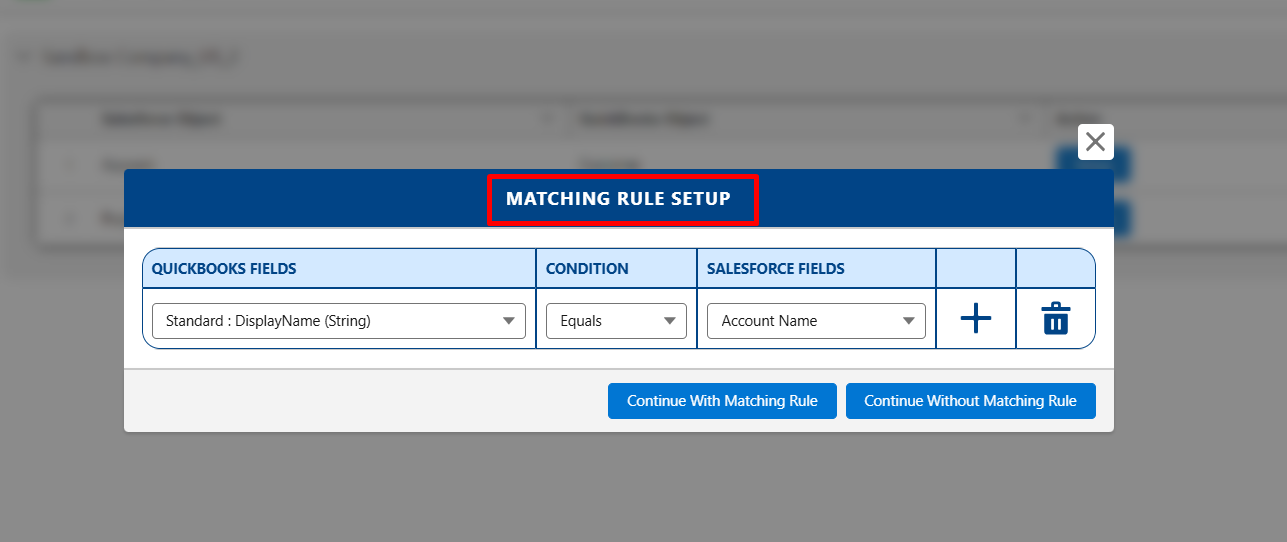
You can define a matching rule here. This rule will suggest the corresponding Salesforce record for a QuickBooks customer. Don’t worry – no records will be updated in Salesforce. You can also click the “Continue without Matching Rule” button to proceed without setting up a rule.
Step 5. View and Match Records
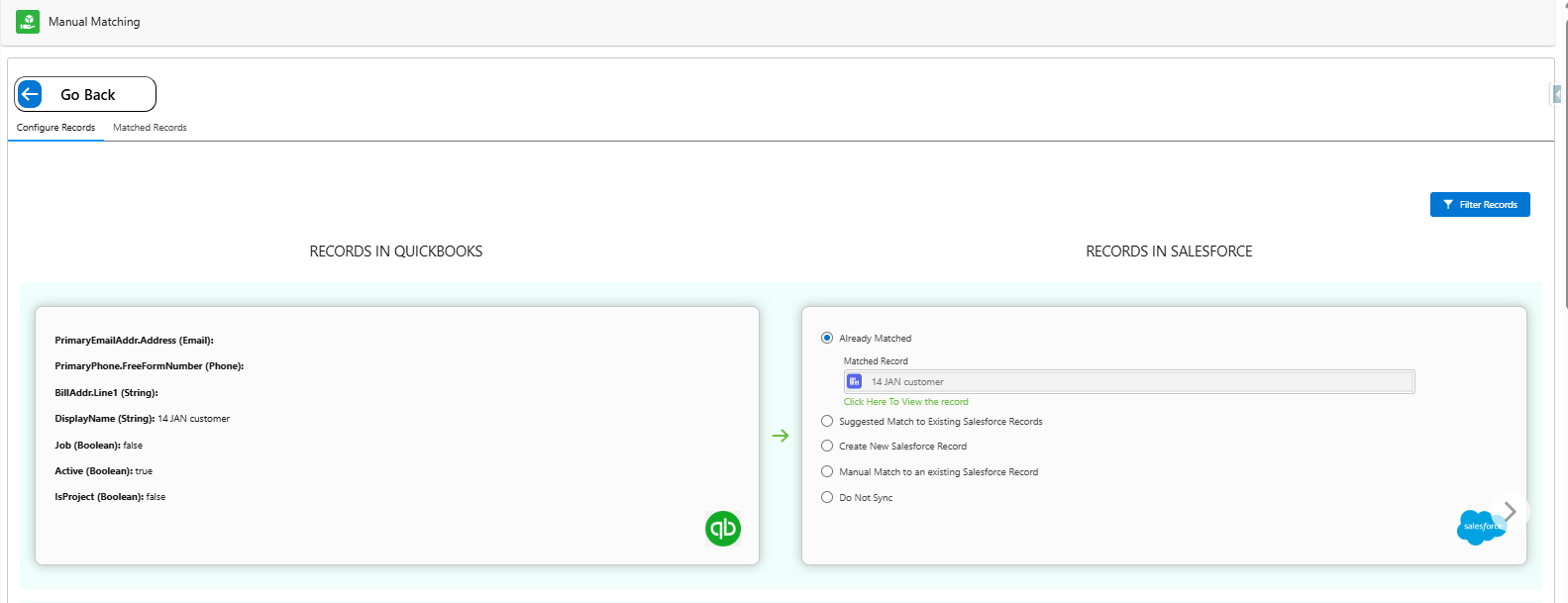
A new screen displays:
- QuickBooks records on one side
- Actions that you can perform for particular QB Records:
- Already Matched – Record is already linked.
- Suggested Match – System has found a possible match based on the matching rule.
- Create New Salesforce Record – Create a new record in Salesforce.
- Manual Match – Manually select a Salesforce record.
- Do Not Sync – Exclude the record from syncing.
Step 6. Save Your Changes
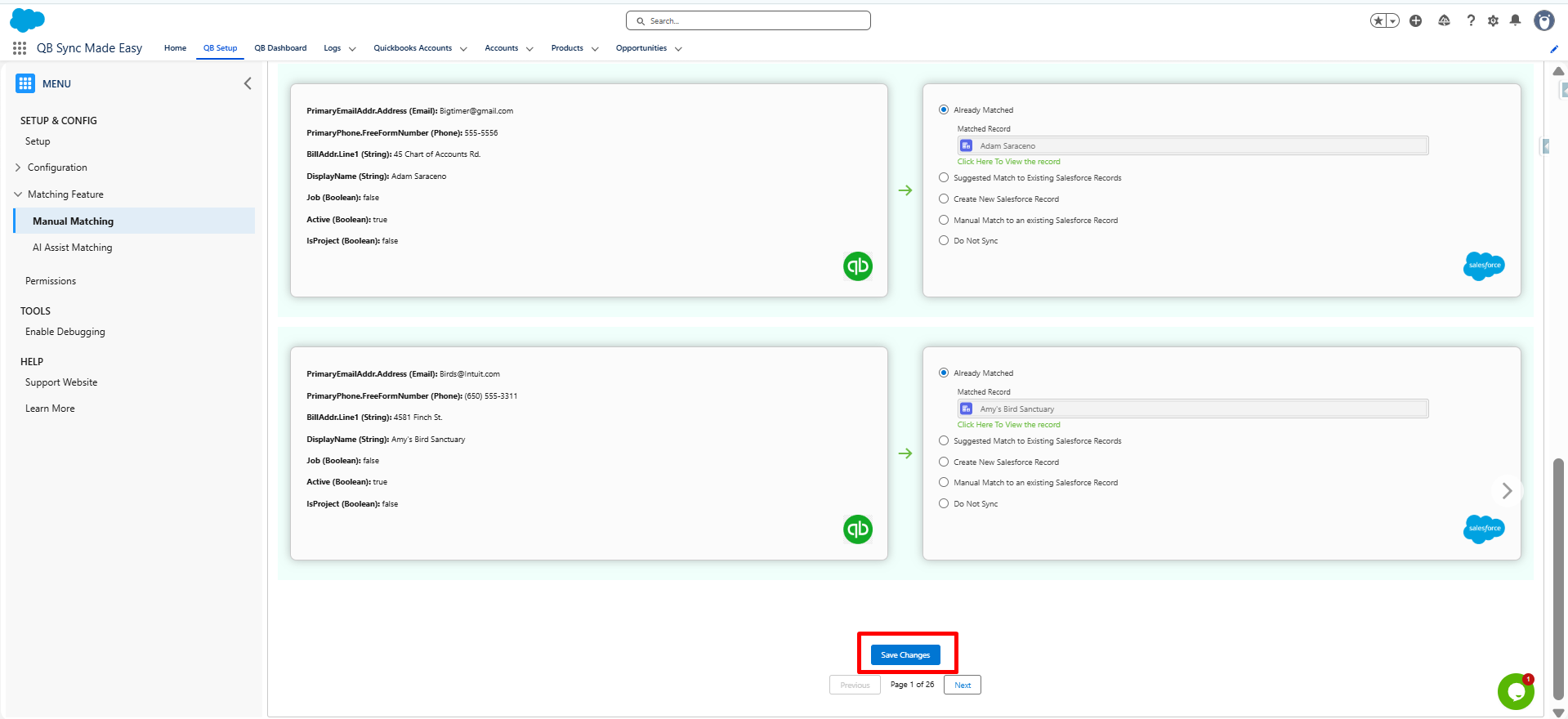
After reviewing and setting matches, click Save Changes. Your preferences will be saved, and the matched records will be updated accordingly.
Was this article helpful?
That’s Great!
Thank you for your feedback
Sorry! We couldn't be helpful
Thank you for your feedback
Feedback sent
We appreciate your effort and will try to fix the article