Before enabling real-time synchronization, ensure that your QuickBooks company is connected to Salesforce and that all required object and field mappings are configured.
Prerequisites
- QuickBooks company is successfully connected to Salesforce.
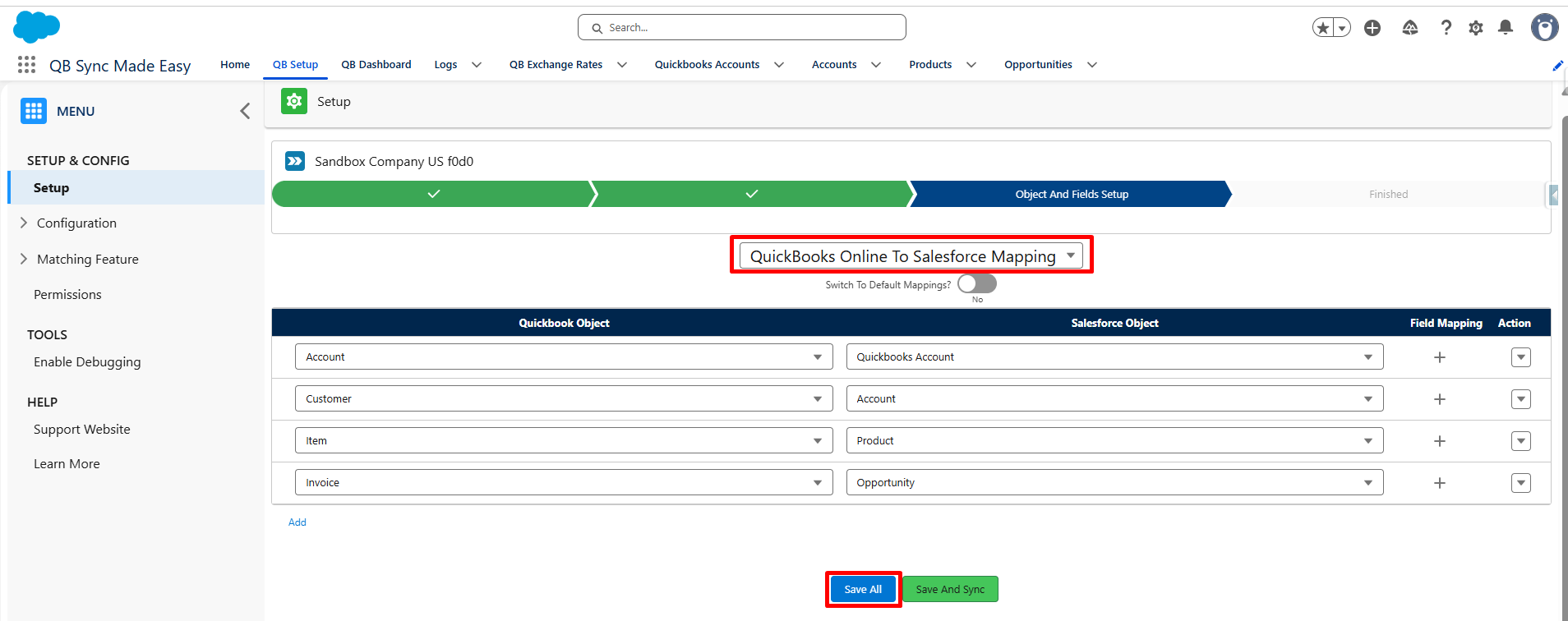
- Required QuickBooks objects are mapped to the corresponding Salesforce objects.
- Required fields are mapped between QuickBooks and Salesforce.
Note:
Real-time synchronization will only work for objects that have both object mapping and field mapping configured correctly.
Step 1: Verify Company Connection and Mappings
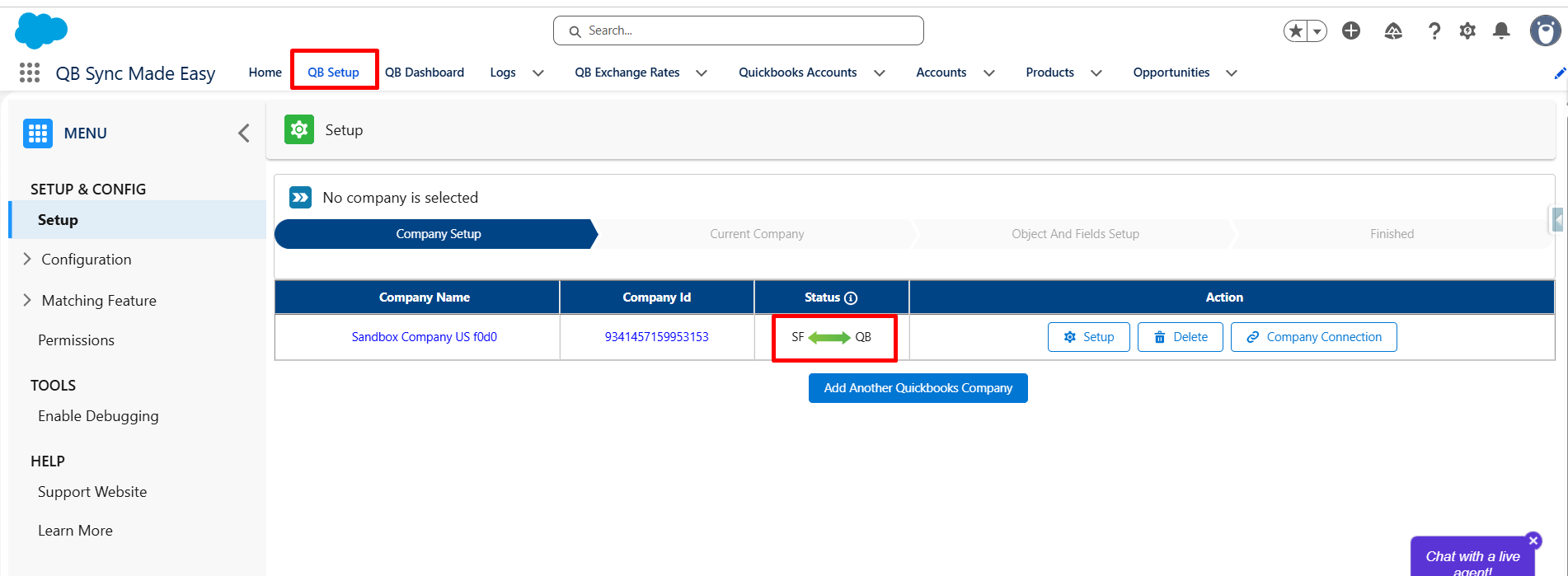
- Open the QB Setup tab.
- Verify that the QuickBooks company is connected to Salesforce.
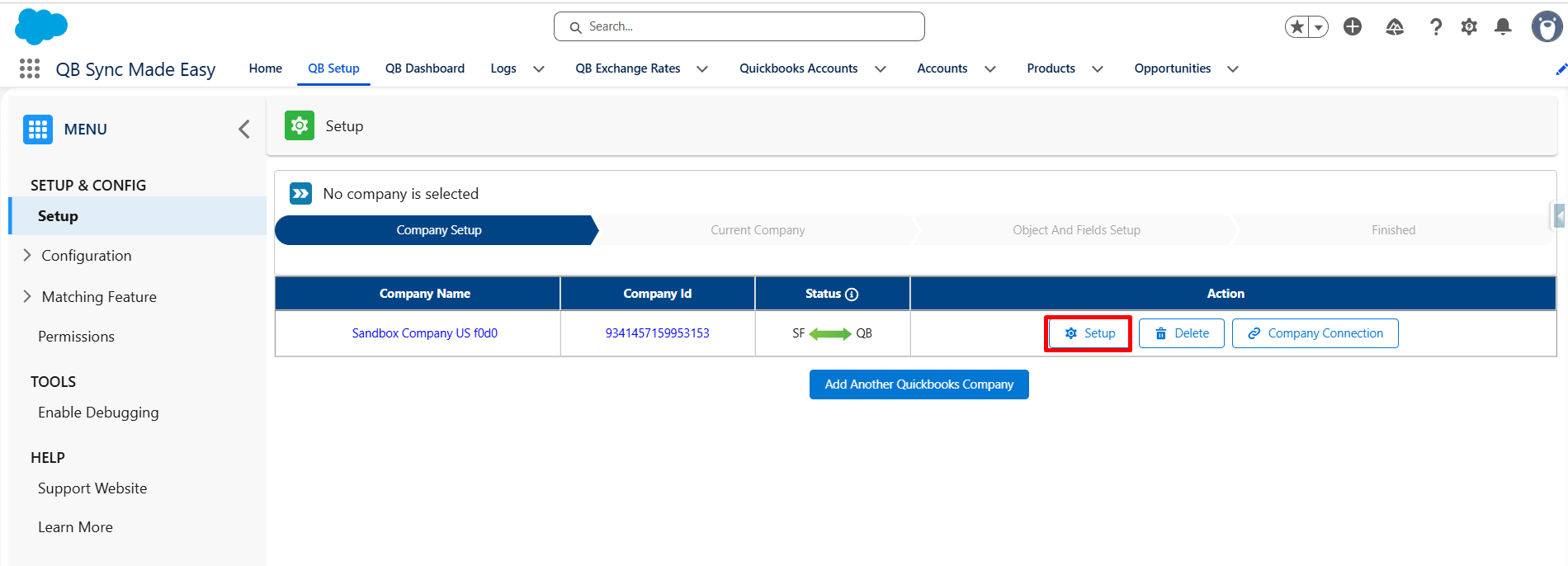
- Click on Setup Button
- Confirm that the required object and field mappings from QuickBooks to Salesforce have been configured.
Step 2: Open Real-Time Configuration
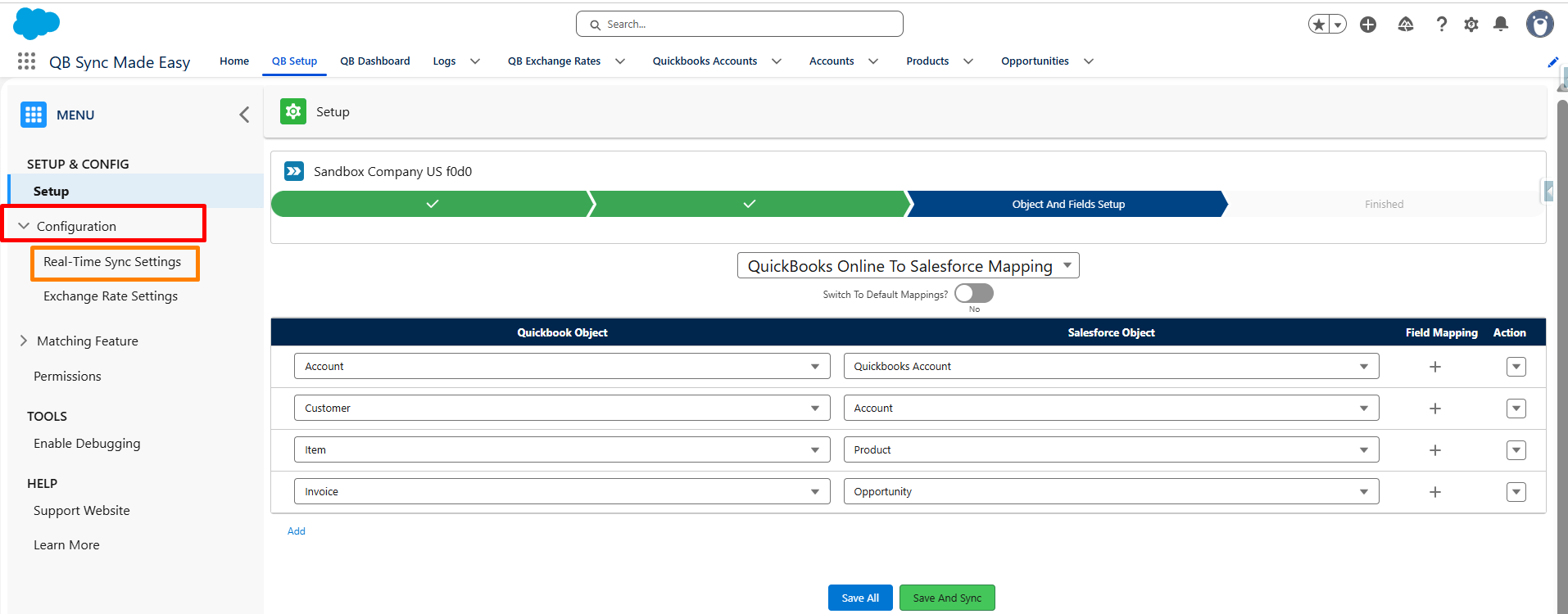
- From the left navigation menu, click Configuration.
- Select Real-Time Configuration.
Step 3: Enable Real-Time Synchronization
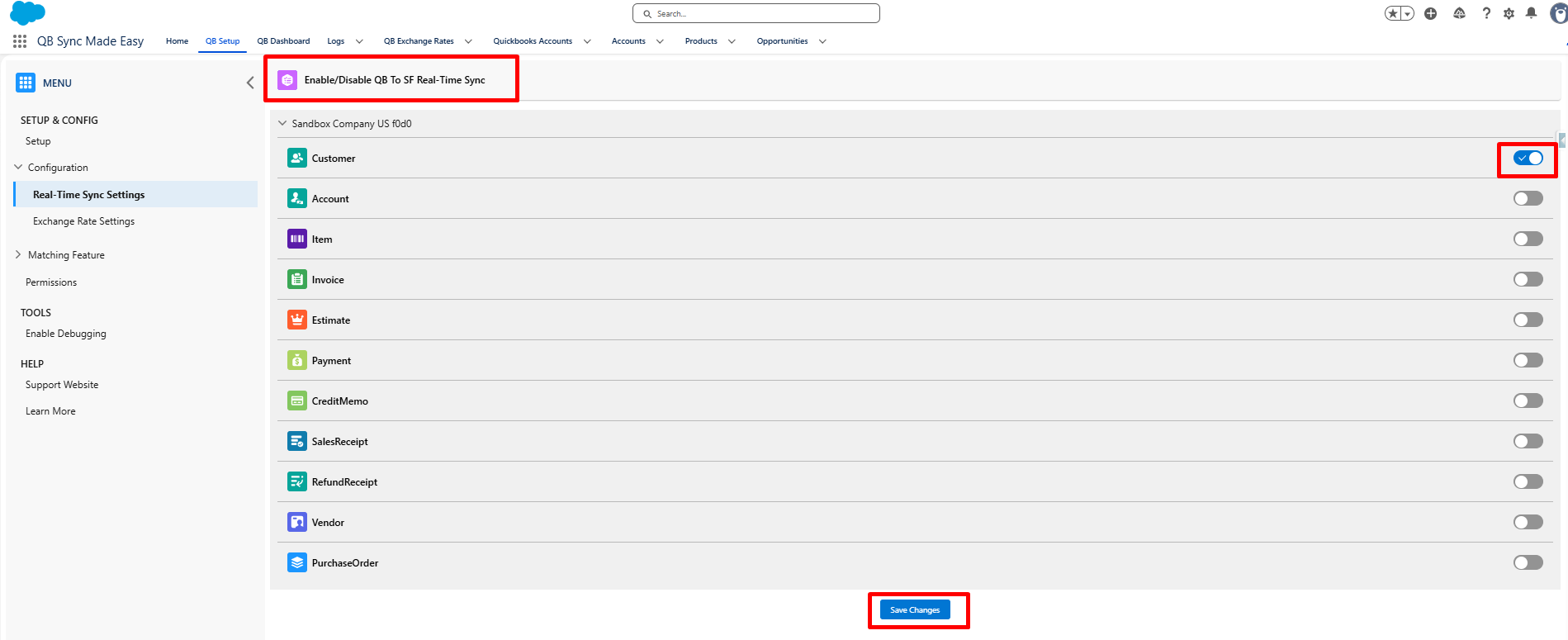
- In the Real-Time Configuration page, locate the QuickBooks objects that you want to synchronize.
- Enable the objects that should sync from QuickBooks to Salesforce in real time (for example, Customer).
- Click Save to apply the changes.
Important Note:
Ensure that each QuickBooks object is mapped to the appropriate Salesforce object. Verify that all required fields are mapped correctly. Every mapped QuickBooks object must also be enabled in Real-Time Configuration. Click Save after making any mapping or synchronization changes.
After the configuration is completed and real-time synchronization is enabled:
Any new records created in QuickBooks for the enabled objects will automatically sync to Salesforce in real time.
Updates will be processed according to the configured object and field mappings.
Example
If the Customer object is mapped and enabled for real-time synchronization:
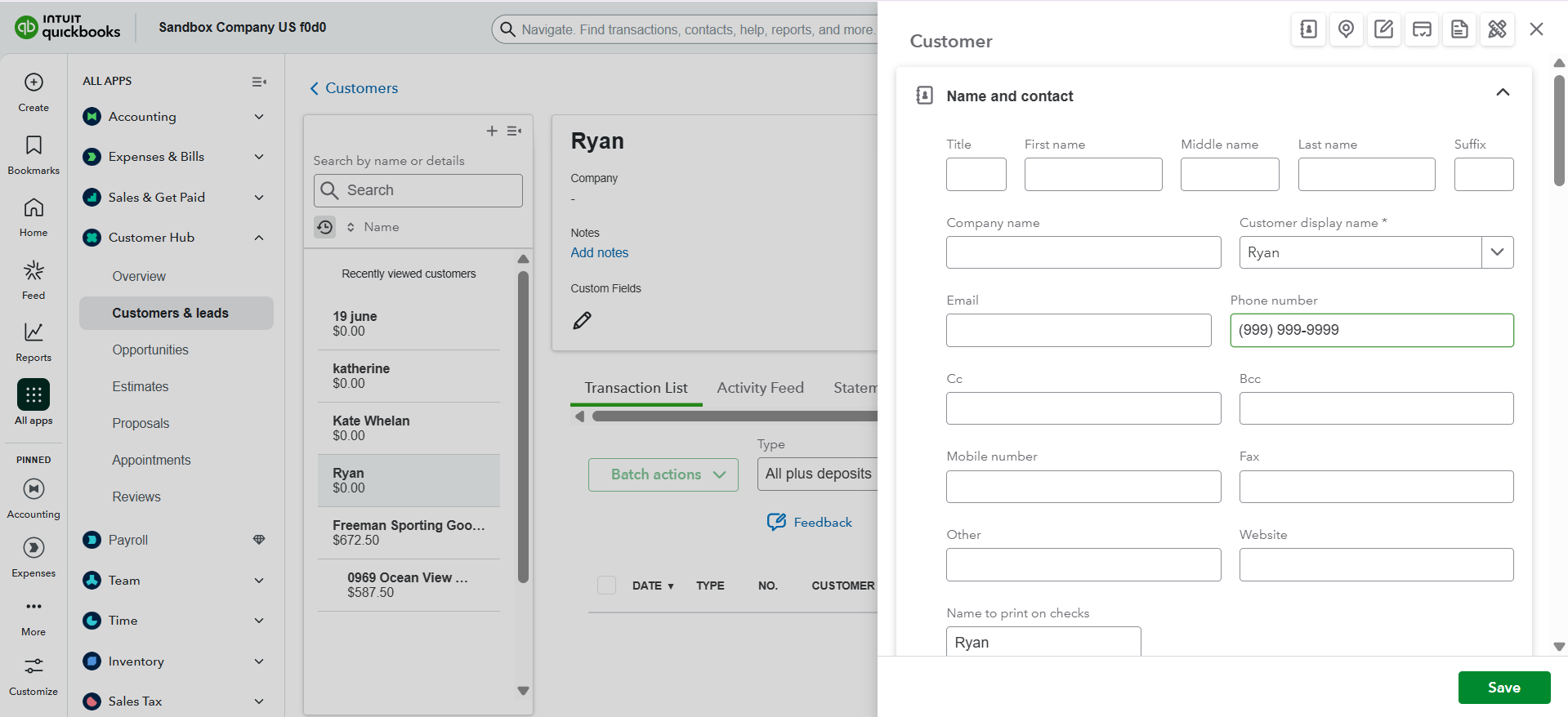
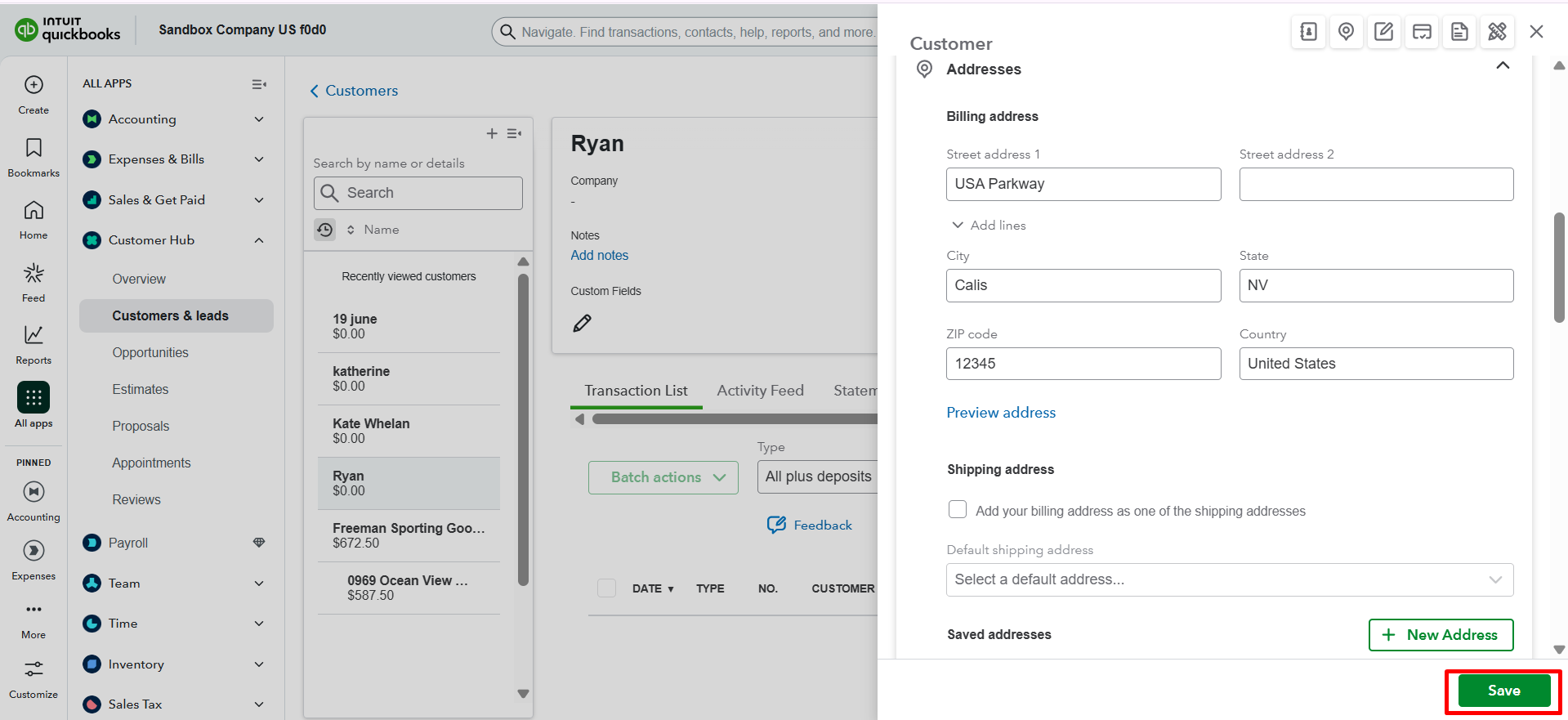
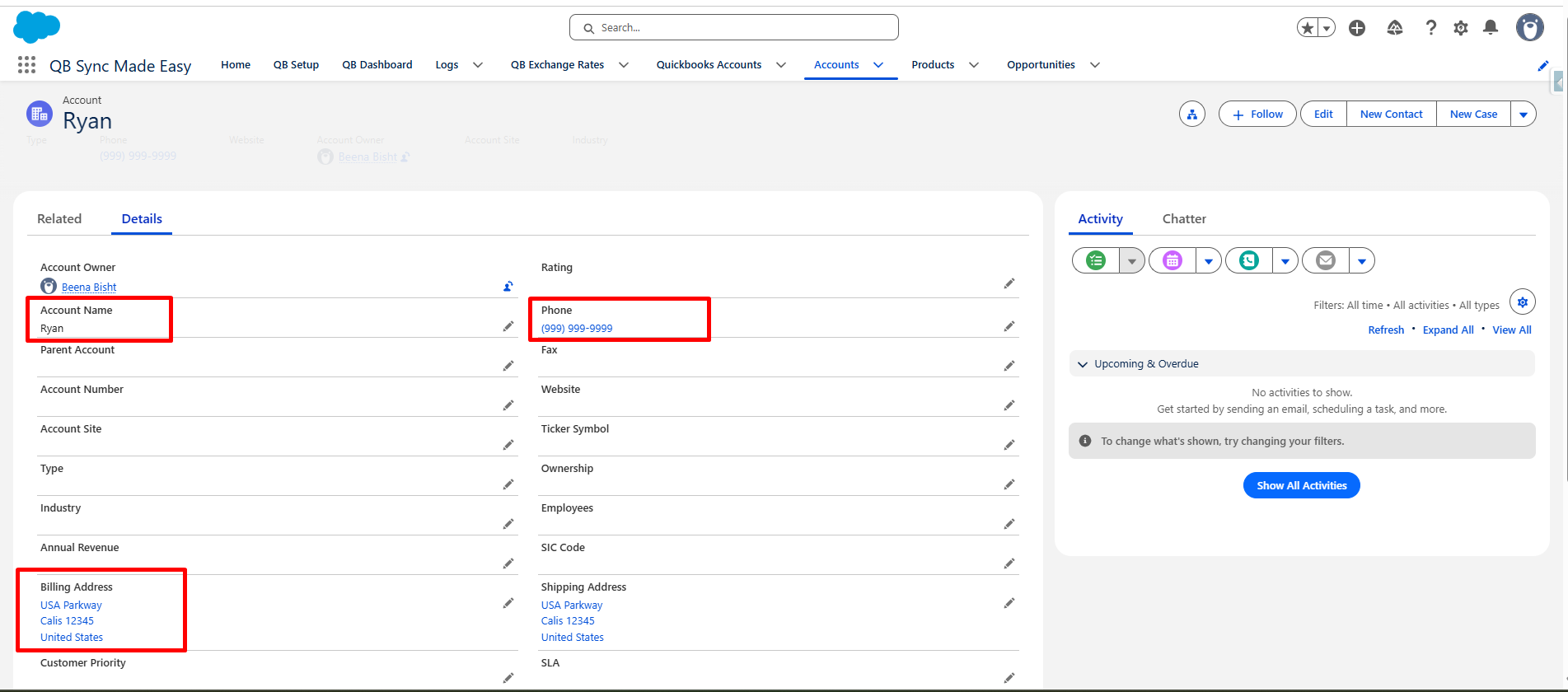
A new Customer created in QuickBooks will automatically create the corresponding record in Salesforce without requiring a manual sync.
Customer created in QuickBooks Company
Customer create in Salesforce
Was this article helpful?
That’s Great!
Thank you for your feedback
Sorry! We couldn't be helpful
Thank you for your feedback
Feedback sent
We appreciate your effort and will try to fix the article